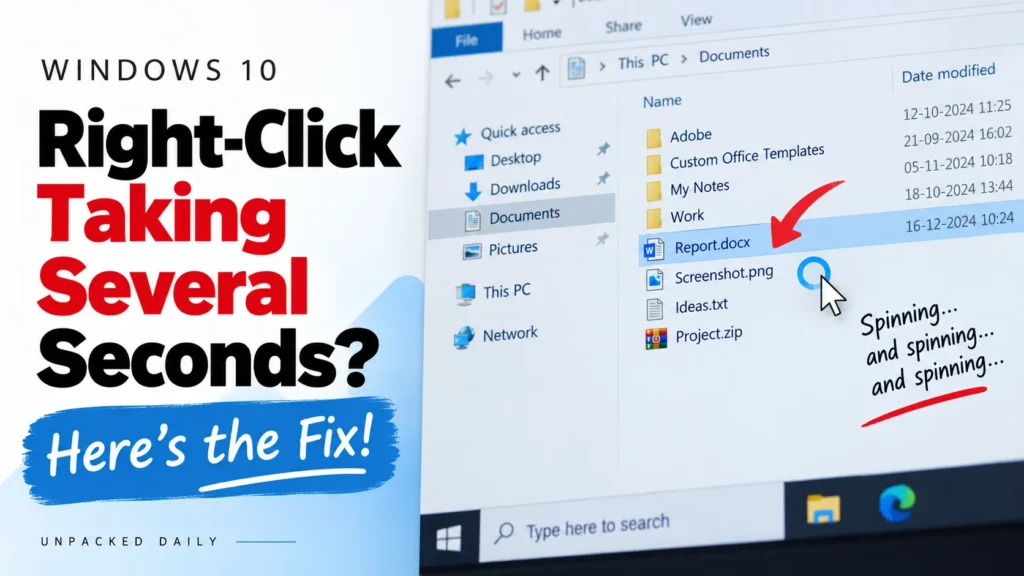
A right-click on a file or desktop should be instant. But sometimes Windows takes 2 to 5 seconds before showing the context menu, even though File Explorer itself is working normally.
That is exactly the kind of problem where random Windows 10 tweaks can waste a lot of time. The useful clue is that the slowdown happens at one specific action: right-clicking a file.
In this guide, we will isolate what is slowing the context menu down and remove it. The main suspect is a third-party shell extension, especially when Explorer is otherwise behaving normally.
Step 1: Confirm the symptom
Before changing anything, check the pattern.
Open File Explorer and browse a few folders. Open a file or two. Then right-click a file.
If the menu appears immediately, the problem may be temporary.
If the menu consistently takes several seconds to appear while the rest of Explorer feels normal, continue with the steps below.
This distinction matters. A completely frozen or generally slow File Explorer points to a much wider problem. A delay that happens specifically when the context menu is being created gives us a much narrower target.
Step 2: Create a restore point
Before disabling Explorer integrations, create a restore point.
Search Windows for: Create a restore point
Open it, make sure System Protection is enabled for the system drive, and select Create.
You probably will not need it, but there is no good reason to troubleshoot system components without a rollback option.
Step 3: Check third-party shell extensions
This is the main fix.
Windows allows applications to integrate with File Explorer through shell extensions. These can add context-menu commands, file properties, overlays and other Explorer features.
Normally they work quietly in the background.
When one of them is broken, badly installed, left behind by old software, or simply slow to respond, Explorer can wait for it before showing the right-click menu.
That is why the menu can take several seconds to appear even though everything else feels normal.
For this test, use ShellExView from NirSoft.
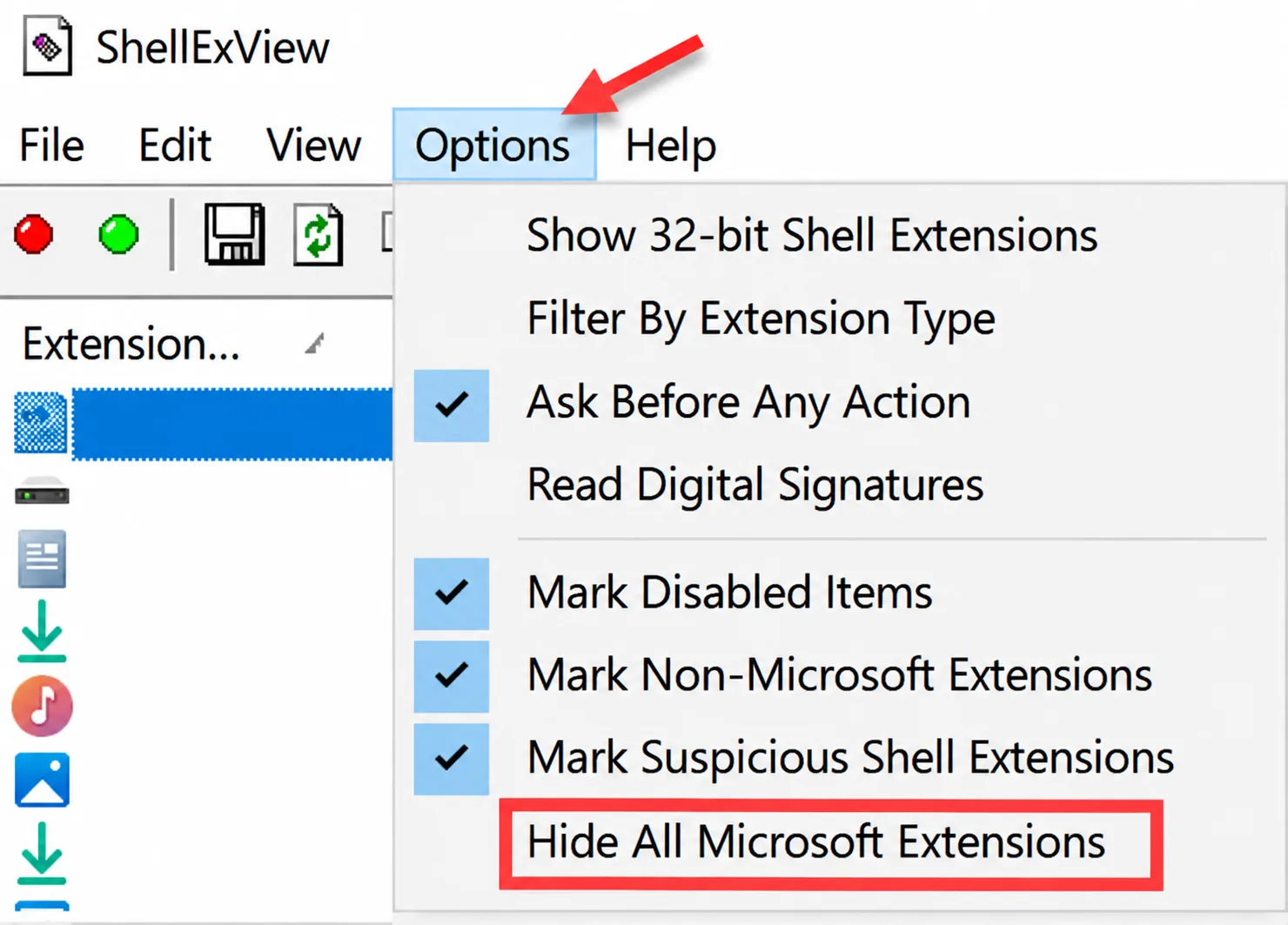
After opening ShellExView:
- Go to Options → Hide All Microsoft Extensions.
- Sort the list by the Type column.
- Look for entries marked Context Menu.
- Pay attention to third-party software names.
You are looking for extensions belonging to applications other than Microsoft.
Step 4: Disable one suspicious extension
Select one third-party context-menu extension and press F7 to disable it. Then restart Windows Explorer.
ShellExView provides an option to restart Explorer, so you do not need to reboot the whole computer after every test.
Now right-click the same type of file.
If the menu is still slow
Enable the extension again with F8 and test the next one.
If the menu becomes instant
You have found the important clue. That extension is involved in the slowdown.
Do not immediately start changing other things. First note down which extension you disabled and which application it belongs to. Then check that application’s settings or installation.
If an update is available, install it. If the Explorer integration is optional and you do not need it, leaving that particular extension disabled is also a practical solution.
Step 5: Too many extensions? Narrow them down in groups
If you have a very large list of third-party extensions, testing them one by one can take a while.
There is a faster way.
Disable a group of third-party Context Menu extensions and restart Explorer.
Test the right-click menu.
If the problem disappears, the bad extension is inside that group.
Now re-enable half of the disabled extensions and test again.
Keep splitting the group until you are left with one extension.
This is much faster than randomly disabling everything.
Step 6: If ShellExView does not fix it, try a clean boot
If the right-click is still slow after checking shell extensions, use a clean boot to see whether another third-party service or startup program is involved.
Press:
Win + RType:
msconfigPress Enter. Open the Services tab.
Select: Hide all Microsoft services
Then select: Disable all
Next, open the Startup tab and use Open Task Manager to disable the enabled startup items. Restart the PC and test the right-click menu again.
If right-click becomes fast
A third-party service or startup program is probably involved.
Re-enable the disabled items in groups and test after each change until you narrow the problem down.
If nothing changes
The problem is less likely to be a normal startup application or service. Go back to Explorer, shell extensions and Windows system files.
Step 7: Repair Windows 10 system files
It is worth ruling out damaged Windows components before going deeper.
Open Command Prompt as Administrator.
Run:
DISM /Online /Cleanup-Image /RestoreHealthLet it finish.
Then run:
sfc /scannowWait for SFC to finish.
Restart Windows and test the right-click menu again.
If SFC reports that it repaired files and the problem disappears afterwards, you have a very different cause from a bad shell extension.
If it reports that no integrity violations were found, that also helps because Windows system-file corruption becomes less likely.
Step 8: Check whether another drive is involved
This is worth checking only if the PC has other symptoms.
For example, look for slow access to files stored on another drive, folders that take a long time to open, unusual drive behaviour, or delays that happen specifically when files on that drive are accessed.
If Windows is installed on an SSD but you keep your files on an HDD, both drives can still be involved in Explorer operations. But do not automatically blame the HDD just because you have one.
A computer where everything works normally and only right-clicking takes several seconds points to a much more specific problem than a computer where file access is generally slow.
Step 9: Check startup software if Windows also boots slowly
If the PC is also taking unusually long to reach the lock screen, investigate startup software separately.
Microsoft’s Autoruns is useful here because it shows many more auto-start locations than the normal Startup section in Task Manager, including services and Explorer-related entries.
The important part is still the same: isolate the component.
Do not assume a program is responsible simply because it is installed. A program becomes a strong suspect when disabling its relevant component changes the symptom.
What about third-party or modified software?
Third-party applications can add Explorer integrations, background services and other components. Modified or unofficial software can add even more background pieces that are not obvious from the normal application interface.
That makes them worth considering during troubleshooting. But the installation of a particular program is not proof that it caused the right-click delay.
The useful question is: What changed the symptom when you disabled it? That is why the isolation steps above matter.
The fix in one view
Do you need to reinstall Windows?
Probably not for this problem alone.
A right-click menu that takes several seconds to appear while File Explorer otherwise works normally is a specific symptom. Use that clue before reaching for a much bigger fix.
The most useful thing to test first is the software that Explorer loads to build the context menu.
In many cases, the problem is not that Windows suddenly became slow. It is that Explorer is waiting for one of the extra pieces of software attached to it.
Find that piece, disable it, and the right-click menu should go back to being what it was supposed to be in the first place: instant.