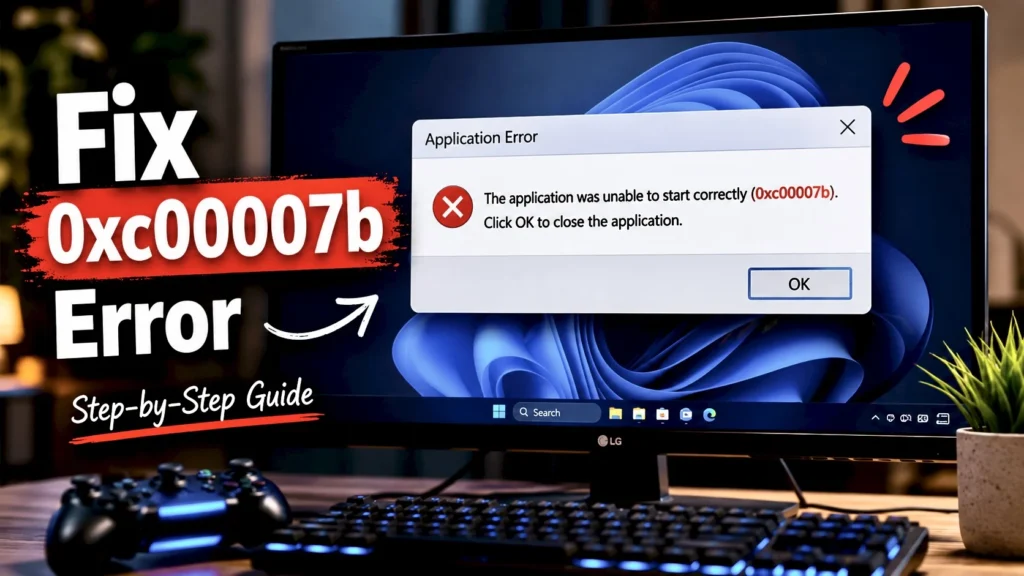
You open a game or app and suddenly Windows throws this weird message:
“The application was unable to start correctly (0xc00007b).”
That’s it. No proper explanation. No clue what actually broke. Just a random 0xc00007b error code like your PC decided to speak in an encrypted language.
This error usually shows up while opening games, Adobe apps, launchers, cracked software, Steam titles, or even normal Windows programs. A lot of people instantly panic and start downloading random DLL files from shady websites. Don’t do that. Seriously. That’s one of the fastest ways to mess up your system even more.
The good thing is that the 0xc00007b error is usually fixable without reinstalling Windows.
Most of the time, it happens because Windows is missing important runtime files, DirectX components, Visual C++ packages, or because some system files got corrupted after an update or bad installation.
So before trying extreme fixes, go through these properly.
First, Restart Your PC
Yeah this sounds basic, but surprisingly a lot of temporary runtime issues disappear after a restart.
Especially if:
- Windows updated recently
- drivers were installed
- game files were modified
- Visual C++ packages were installed halfway
Do a full restart, not shutdown + turn on. After rebooting, try opening the app again.
If the error still appears, move on.
Reinstall Microsoft Visual C++ Redistributable’s
This is probably the most common fix for 0xc00007b.
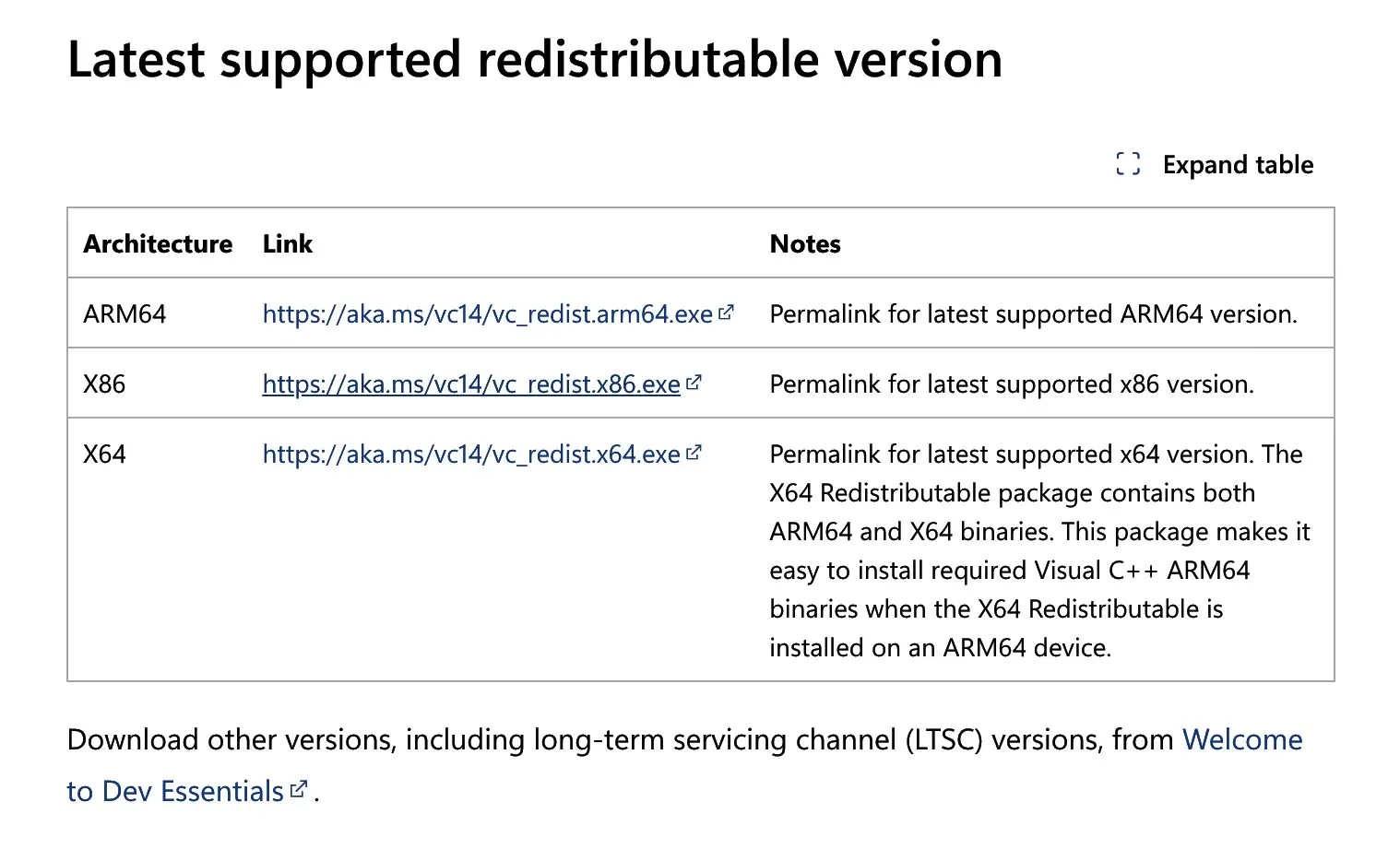
A lot of apps and games depend on Microsoft Visual C++ runtime files to launch correctly. If those files are missing, corrupted, or mixed between 32-bit and 64-bit versions, Windows throws the error instantly.
Search for:
“Microsoft Visual C++ Redistributable latest”
Then download both:
- x64 version
- x86 version
Even if your PC is 64-bit, install both versions because many apps still use 32-bit components.
After downloading:
- Install them
- Restart your PC
- Try opening the app again
This alone fixes the issue for many people.
Reinstall DirectX Runtime Files
Another major cause is broken or missing DirectX files.
This happens a lot with games.
Even modern games still depend on older DirectX components that Windows doesn’t always install automatically.
Search for:
“DirectX End-User Runtime Web Installer”
Download it directly from Microsoft and run the installer.
It only takes a minute or two.
After installation:
- restart the PC
- launch the game/app again
A lot of people skip this step and waste hours trying random fixes first.
Run the App as Administrator
Sometimes the app technically works, but Windows blocks access to required files or folders.
Right-click the application and choose:
Run as administrator
If that works:
- Right-click the app permanently
- Open Properties
- Compatibility
- Enable:
Run this program as administrator
Not the most exciting fix, but it works more often than people think.
Don’t Download Random DLL Files From the Internet for 0xc00007b error
This is where most people make things worse.
You search the error on YouTube and suddenly every video says:
“Download this DLL and paste into System32.”
Terrible idea.
A lot of those DLL websites are sketchy, outdated, or filled with modified files.
Even if the error disappears temporarily, you can end up with:
- broken Windows components
- malware
- weird crashes later
- startup issues
- security problems
If a DLL is genuinely missing, the correct fix is usually reinstalling:
- Visual C++
- DirectX
- the affected application itself
Not downloading mystery files from random websites made in 2012.
Use the Windows System File Checker
Windows has a built-in repair tool that checks damaged system files automatically.
Open Command Prompt as Administrator.
Then type:
sfc /scannow
Now wait.
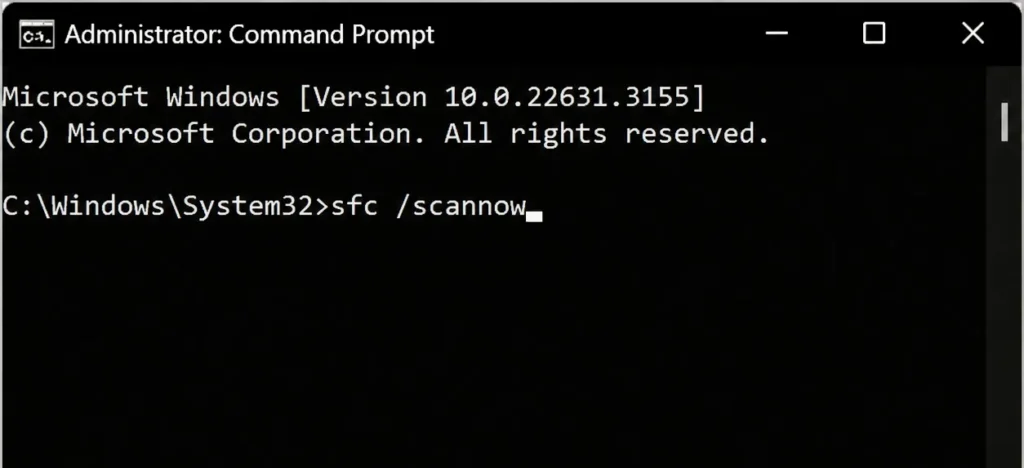
The scan can take several minutes depending on your system.
If Windows finds corrupted files, it will attempt to repair them automatically.
Once it finishes:
- restart the PC
- test the app again
This is especially useful if the error started appearing after:
- Windows updates
- driver crashes
- forced shutdowns
- power cuts
- failed installations
Reinstall the Problematic App or Game
Sometimes the app installation itself is broken.
This happens a lot with:
- modded games
- cracked software
- interrupted installations
- copied game folders
- old launchers
Completely uninstall the application first.
Then:
- delete leftover folders
- restart the PC
- install it again properly
If it’s a Steam game:
- verify integrity of game files first
Corrupted launch files are a very common reason behind this error.
Check if You’re Mixing 32-bit and 64-bit Files
This is one of the technical reasons behind 0xc00007b.
A 64-bit app trying to load 32-bit DLLs can trigger the error immediately.
Normal users usually run into this accidentally while:
- manually replacing DLL files
- using modded game files
- copying software between systems
- using unofficial fixes
If you already downloaded random DLLs earlier, honestly, remove them and reinstall the original software cleanly.
Trying to manually “repair” Windows folders without knowing what belongs there usually creates bigger problems later.
Update GPU Drivers
Graphics drivers can also trigger weird runtime issues.
Especially after:
- major Windows updates
- GPU driver crashes
- game optimization updates
Go to your GPU manufacturer website:
- NVIDIA
- AMD
- Intel
Download the latest stable driver directly from there.
Avoid random “driver updater” apps.
After installation:
- restart the system
- test the application again
If Nothing Works
At this point, the issue is usually deeper:
- damaged Windows installation
- heavily modified system files
- broken drivers
- malware
- extremely old software conflicts
Before reinstalling Windows completely, try:
- creating a new Windows user account
- running DISM repair commands
- using System Restore
- checking disk health
But honestly, most people fix 0xc00007b long before reaching this stage.
Usually it ends up being:
- Visual C++
- DirectX
- corrupted app files
- bad DLL replacements
That’s why blindly following random YouTube tutorials often wastes more time than actually fixing the issue properly.
And again, don’t trust videos telling you to replace half your System32 folder. That’s internet chaos, not troubleshooting.