Photoshop has a strange habit of making even powerful PCs feel slow.
Maybe brushes start lagging. Maybe zooming becomes choppy. Maybe opening a large PSD file feels like waiting for a software update from 2008. And somehow Task Manager shows plenty of CPU and RAM still available.
The good news is that Photoshop performance problems are often caused by settings, storage issues, or resource allocation problems rather than weak hardware.
Before you start looking for expensive upgrades, try these fixes first.
Check How Much RAM Photoshop Can Use
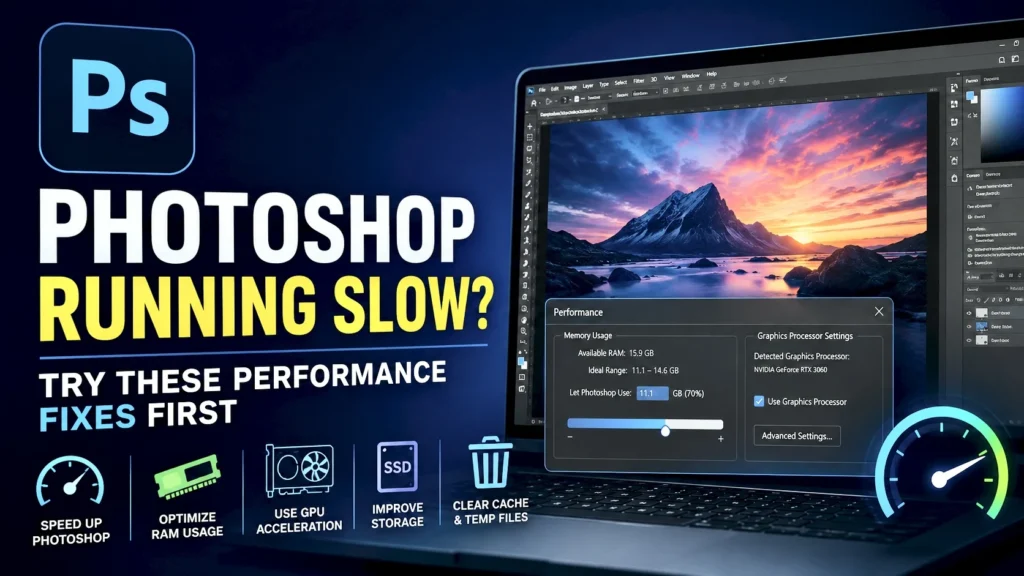
One of the first things worth checking is Photoshop’s memory allocation.
By default, Photoshop doesn’t always use as much RAM as it safely could. If you’re working with large images, multiple layers, or high-resolution projects, this can slow everything down.
Open Photoshop and go to:
Edit → Preferences → Performance
Look for the Memory Usage section.
Adobe usually recommends allocating around 70% of available RAM to Photoshop. If it’s set unusually low, increasing it can make a noticeable difference.
Don’t max it out completely though. Windows and other applications still need memory to function properly.
If you frequently work with large files, this setting alone can improve responsiveness.
Make Sure GPU Acceleration Is Enabled
Modern Photoshop versions rely heavily on the graphics card.
Features like:
- Zooming
- Canvas rotation
- Filters
- AI tools
- Smooth scrolling
can all benefit from GPU acceleration.
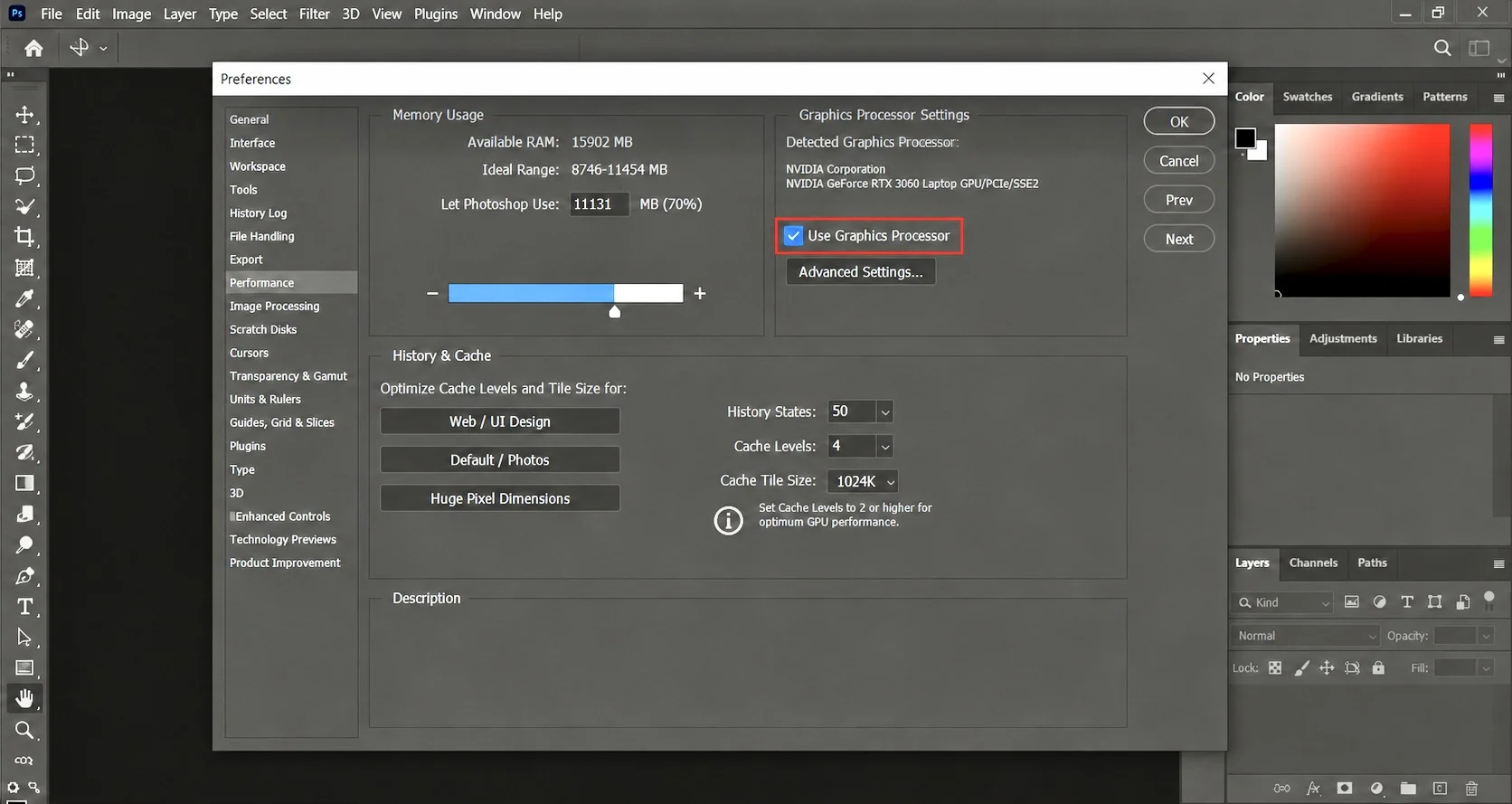
Go to:
Edit → Preferences → Performance
Check whether Use Graphics Processor is enabled.
If it’s disabled, Photoshop may feel much slower than it should.
If it’s already enabled but performance is poor, updating your graphics drivers may help.
Download drivers directly from:
- NVIDIA
- AMD
- Intel
Avoid random driver-updater software.
Free Up Space on Your SSD
A surprisingly common cause of Photoshop slowdowns is low storage space.
Photoshop creates temporary files while you’re working. These files can become massive when editing large projects.
If your SSD is nearly full, Photoshop can struggle even when CPU and RAM usage look normal.
Try to keep at least 20–25% free space available on your primary drive.
Delete:
- Old downloads
- Unused installers
- Temporary files
- Large videos you no longer need
Many users notice improvements immediately after freeing storage space.
Optimize Photoshop Scratch Disks
Scratch disks are temporary storage locations Photoshop uses when RAM isn’t enough.
Think of them as an emergency workspace.
If the scratch disk is slow or almost full, Photoshop performance can suffer badly.
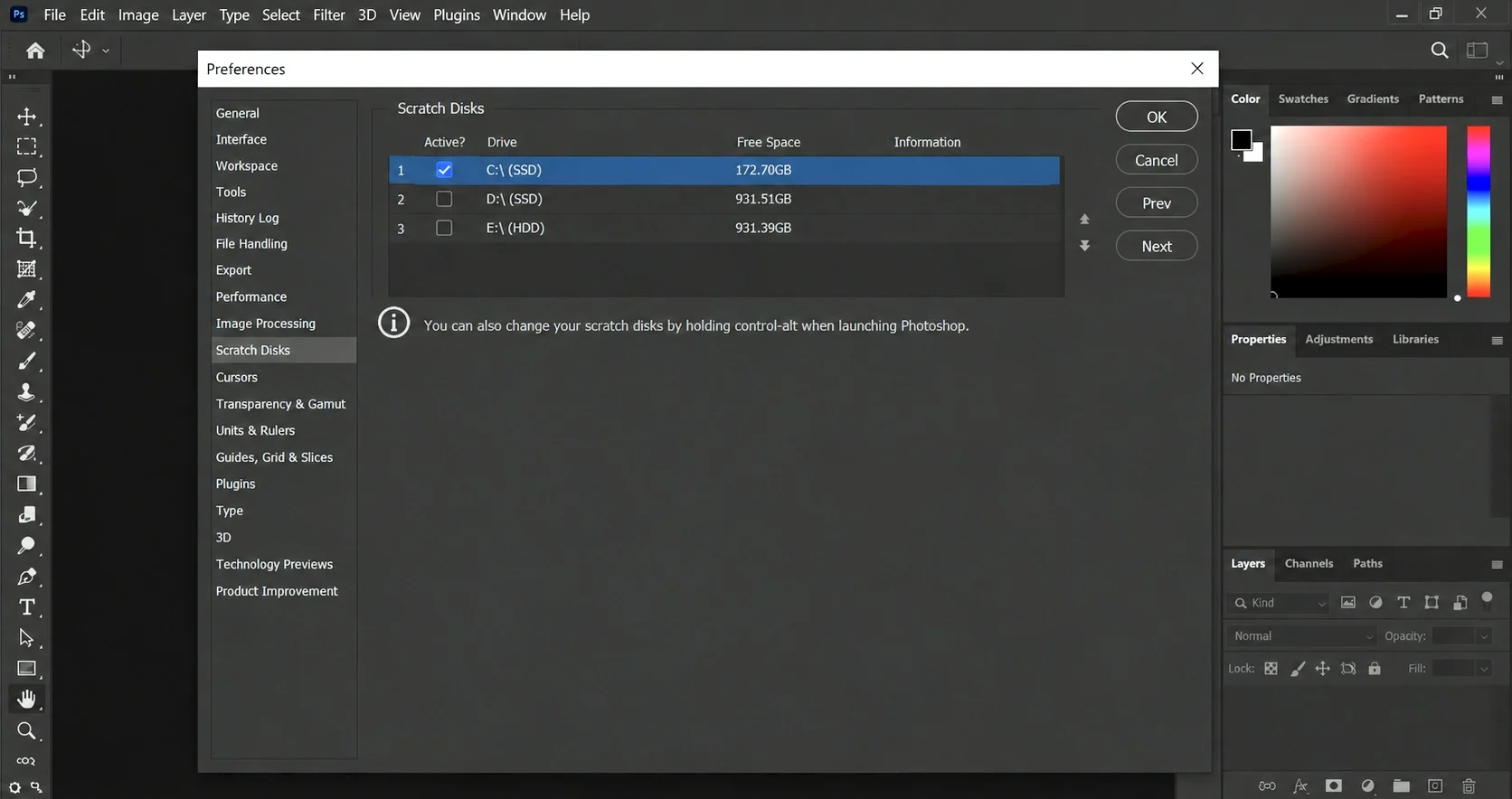
To check it:
Edit → Preferences → Scratch Disks
Ideally:
- Use a fast SSD
- Avoid nearly full drives
- Don’t use slow external drives if possible
If you have multiple SSDs, assigning Photoshop to the fastest one can improve performance significantly.
Reduce History States
Photoshop remembers your previous actions so you can undo changes.
That’s useful, but storing hundreds of actions consumes memory and resources.
Go to:
Edit → Preferences → Performance
Look for:
History States
Unless you specifically need hundreds of undo levels, lowering the value can reduce memory usage.
Most users won’t notice a difference between 100 history states and 30.
But Photoshop definitely will.
Clear Photoshop Cache
Photoshop stores cache data to speed up certain operations.
Over time, this cache can become bloated.
To clear it:
Edit → Purge
You’ll see options such as:
- Undo
- Clipboard
- Histories
- All
Be careful because purging removes temporary data and can’t be undone.
Still, if Photoshop feels sluggish during long editing sessions, clearing unused cache can help restore responsiveness.
Close Background Applications
Photoshop isn’t always the problem.
Sometimes it’s competing with everything else running on your PC.
Open Task Manager and check what’s using resources.
Common offenders include:
- Chrome with dozens of tabs
- Discord
- Video editing software
- Game launchers
- Cloud sync applications
Even if your system has plenty of RAM, reducing background activity can make Photoshop feel much smoother.
Update Photoshop
This sounds obvious, but many users stay on older versions for years.
Performance improvements often arrive through updates.
Adobe regularly fixes:
- Memory leaks
- GPU compatibility problems
- Stability issues
- AI tool performance
If you’re several versions behind, updating may solve issues without changing any settings.
At the same time, if performance problems started immediately after a new update, checking Adobe forums for known bugs is also worth doing.
Reset Photoshop Preferences
Sometimes Photoshop settings become corrupted.
When that happens, performance issues can appear for no obvious reason.
Resetting preferences can often restore normal behavior.
Open:
Edit → Preferences → General
Then choose the option to reset preferences on quit.
You’ll lose custom settings, so make a note of important configurations first.
It’s a simple step that has solved many mysterious Photoshop problems over the years.
Check Your Hardware Expectations
Photoshop can technically run on modest hardware, but that doesn’t mean it will run well.
Large projects involving:
- Hundreds of layers
- High-resolution images
- AI features
- RAW photo editing
can push even modern systems.
For a comfortable experience today, Photoshop benefits greatly from:
- SSD storage
- At least 16GB RAM
- A modern multi-core processor
- A dedicated GPU
If you’re still using a mechanical hard drive, upgrading to an SSD will usually provide a bigger improvement than almost any software tweak.
Try These Fixes Before Upgrading Your PC
When Photoshop starts slowing down, many people immediately assume they need more RAM, a better graphics card, or a brand-new computer.
Sometimes that’s true.
But in many cases the problem is much simpler.
A full scratch disk, outdated GPU driver, low storage space, poor memory allocation, or a cluttered Photoshop setup can make even powerful hardware feel sluggish.
Start with the software fixes first. They take only a few minutes to check and can often make Photoshop feel significantly faster without spending a single rupee.