A DLL Error Is a Clue, Not the Diagnosis
You reinstall the app. It works again. A few days later, the same .dll error comes back. Sometimes, the app refuses to open even after a fresh installation.
At this point, reinstalling it again feels like going around in circles. Searching for the missing file might seem like the easier way out, but the filename is only part of the story. The file could belong to a shared Microsoft runtime, an older game component, the application itself, or Windows. Each points towards a different fix.
The trick is to find out which part has failed before changing anything. That way, you aren’t reinstalling the same program repeatedly or replacing files that were never the real problem.
Start with the exact error message. It gives you a useful clue, even if it doesn’t reveal the full cause.
Different files can point to different causes. Identify the problem before choosing a fix.
Start With the Exact .dll Name
Windows doesn’t always explain what’s actually broken. Look at the filename or error code, then use this table to choose a sensible first step.
| What you see | What it may mean | Where to start |
|---|---|---|
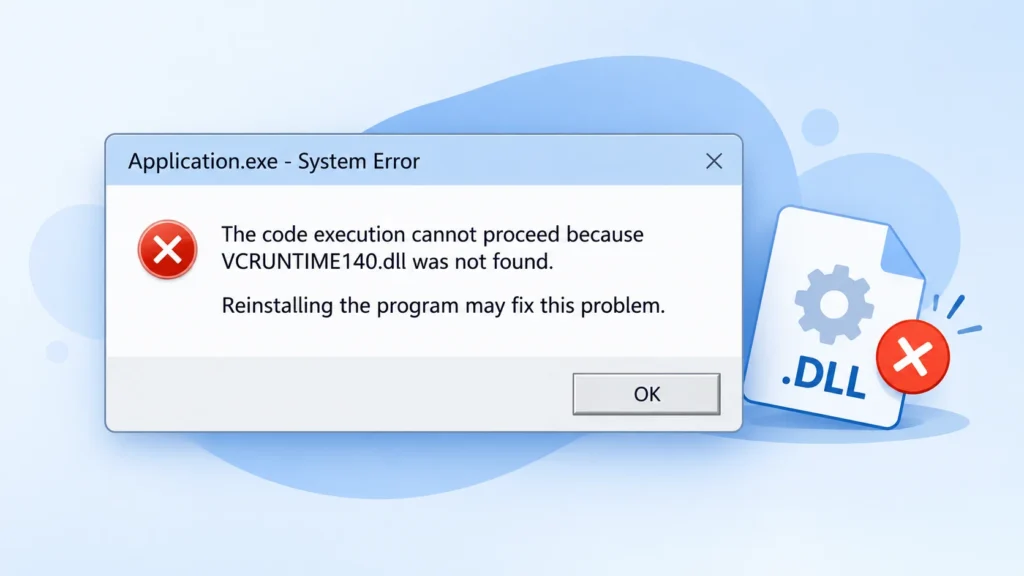
VCRUNTIME140.dll
MSVCP140.dll | A Microsoft Visual C++ runtime dependency may be missing, outdated, or damaged. | Repair or install the correct Visual C++ Redistributable. |
d3dx9_43.dll
xinput1_3.dll | An older game may need optional legacy DirectX components. | Check the official DirectX End-User Runtime. |
UnityPlayer.dll
libcef.dll
steam_api64.dll | The file may belong to a particular game or application. A damaged install is one possible cause. | Repair or update the app. Check security history if the file disappears again. |
| A message naming a .NET runtime | The application may need a particular .NET runtime that isn’t installed. | Check the app’s requirements and Microsoft’s official .NET downloads. |
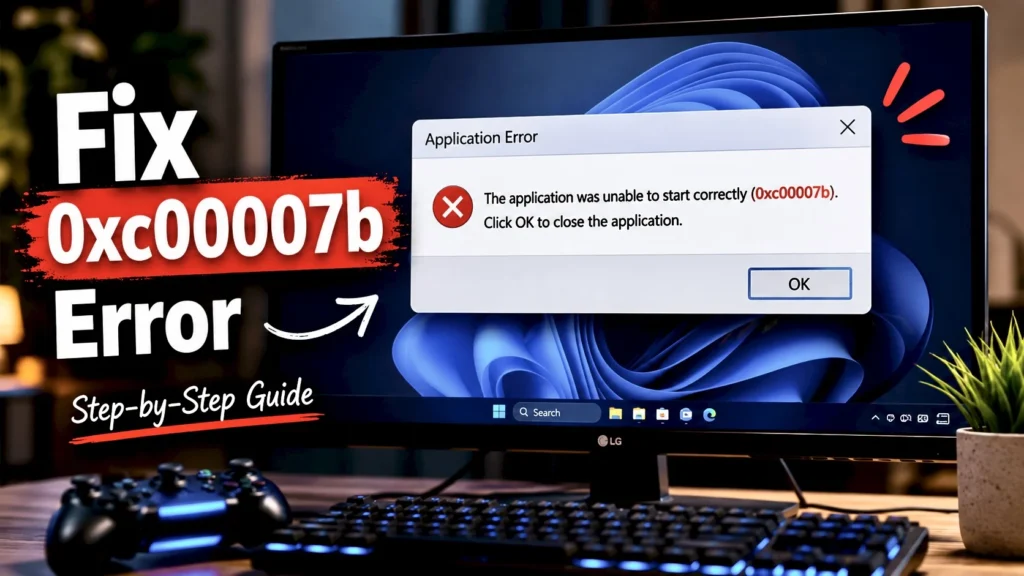
0xc000007b | An application failed to start correctly. A mix of incompatible 32-bit and 64-bit files is one possible cause. | Follow our 0xc000007b troubleshooting guide . |
ntdll.dll
kernelbase.dll
ucrtbase.dll | These names can appear in crash reports. Their presence alone doesn’t prove that a Windows file is missing. | Check what else is failing before attempting system repair. |
Why DLL Errors Survive an App Reinstall
Reinstalling an app usually replaces its own files. The problem is that many Windows programs also depend on shared components installed separately. The Microsoft Visual C++ Redistributable is one example.
The program’s own files
Reinstalling the app can replace its program files, provided the installer itself works correctly.
Shared runtime files
These may remain missing, outdated, or damaged even after the app has been installed again.
This isn’t just a theoretical problem. In a
Python Windows installer report
,
maintainers investigated a missing
api-ms-win-crt-runtime-l1-1-0.dll error. The
Universal C Runtime installation had failed during an earlier
attempt and wasn’t retried during later attempts. It was a
specific case involving an older Windows setup, not a rule
for every installer. But it shows why repeating the same
installation doesn’t always fix the failed dependency.
Repair the Visual C++ runtime
Start here when the filename points to Visual C++.
-
1Open the installed apps list.
On Windows 11, go to Settings → Apps → Installed apps. On Windows 10, open Settings → Apps → Apps & features.
-
2Find Microsoft Visual C++ Redistributable.
Open the available menu for the relevant entry and choose Modify → Repair if that option is provided.
-
3Use the official installer if needed.
If the package is missing or repair doesn’t help, use Microsoft’s current installers below and match the architecture to the app.
The correct architecture matters. A 64-bit PC can run both 32-bit and 64-bit apps, so both x86 and x64 packages can be useful. Older programs may also require older Visual C++ Redistributables, which can remain installed alongside newer versions. Don’t uninstall them all blindly.
Older games and missing DirectX files
Files such as d3dx9_43.dll and
xinput1_3.dll can belong to optional legacy
DirectX components. Use the
official DirectX End-User Runtime
when the game requires them. It doesn’t replace the DirectX
runtime built into Windows.
Apps that need a .NET runtime
Check which .NET version the app requires, then use Microsoft’s official .NET downloads . Installing a different version isn’t guaranteed to satisfy the application’s requirement.
The App Works, Then the Same File Goes Missing
If reinstalling fixes the problem temporarily, check whether the file is actually disappearing from the app’s folder. Security software is one possible reason, but don’t assume it’s responsible before checking.
Go to Virus & threat protection, then open Protection history.
Look for an entry matching the program or file name. Open it and read the details.
Only restore a file if you have good reason to trust its source. If you are unsure, leave it quarantined and check with the software publisher.
Microsoft says Protection History retains events for two weeks. An older event may no longer appear, so an empty list doesn’t settle the question by itself.
Read Microsoft’s Protection History guide ↗If there’s no matching detection, check for a broken application update, damaged installation files, or a failed update from the app’s own launcher. Avoid disabling protection or excluding the entire program folder just to make the error go away.
When the Error Popup Doesn’t Tell You Enough
Sometimes Windows shows a DLL name, but that still doesn’t explain why the program failed. Before reinstalling anything again, check whether Windows recorded more details about the crash.
Start with Event Viewer
Event Viewer is already built into Windows. It keeps records of application and system events, so you can look for an error that happened around the time your app stopped working.
Open the logs
Press the Windows key, search for Event Viewer, and open it. In the left panel, expand Windows Logs and select Application.
Find the matching time
Look for an error recorded when the program failed. Check the date, time, source, and message. If the list is long, use the available filtering options to narrow it down.
Read the technical details
Open the matching event and look at its description. Note the application name, any faulting module name, error code, and other details shown. These clues can help you decide what to investigate next.
These are examples of useful fields, not the exact contents of every Windows error record.
One warning: a DLL appearing in an error record doesn’t automatically mean that file is broken. The app, a dependency, a driver, or another component could be involved. Use the log as a clue, then match it with the error message and what else is happening on your PC. Don’t start deleting files just because their names appear in the report.
For more details, see Microsoft’s guide to Event Viewer in Windows .
A File With the Right Name Can Still Be the Wrong File
A DLL from an unfamiliar download site might have the wrong version or architecture, or come from a source you cannot verify. Use the official runtime installer or get application files from the software publisher instead of copying a random file into a Windows folder.
When Windows Itself May Need Repair
A filename such as ntdll.dll in a crash report
doesn’t automatically mean Windows is damaged. But if
unrelated programs are failing and Windows features are
acting up as well, checking protected system files can make
sense.
Open Terminal or Command Prompt as administrator. Run the first command and wait for it to finish.
DISM /Online /Cleanup-Image /RestoreHealthsfc /scannowRepairs the Windows component store. By default, it can use Windows Update as a source for the files it needs.
Checks protected Windows system files and attempts to replace damaged ones using a working repair source.
Microsoft recommends running DISM before SFC. See the official DISM and System File Checker instructions if a command fails or Windows cannot find the repair files.
If system corruption keeps returning after a successful repair, back up your important files and look at the wider pattern. Check recent updates and drivers, and consider checking drive health and memory. A hardware problem is one possibility, but repeated corruption on its own doesn’t prove that an SSD, hard drive, or RAM is failing.