HEIC vs JPG: Why Your Photos Won’t Open on Some Devices (and When Not to Convert)
You pick a photo from your iPhone, an upload form thinks about it for a second, and then says the file type isn’t supported.
The standard advice is to run it through a free online converter and move on. Sometimes that’s right. But the photo usually isn’t broken. The place you’re sending it to just doesn’t recognise the format. Before converting, it helps to know which of three different problems you actually have.
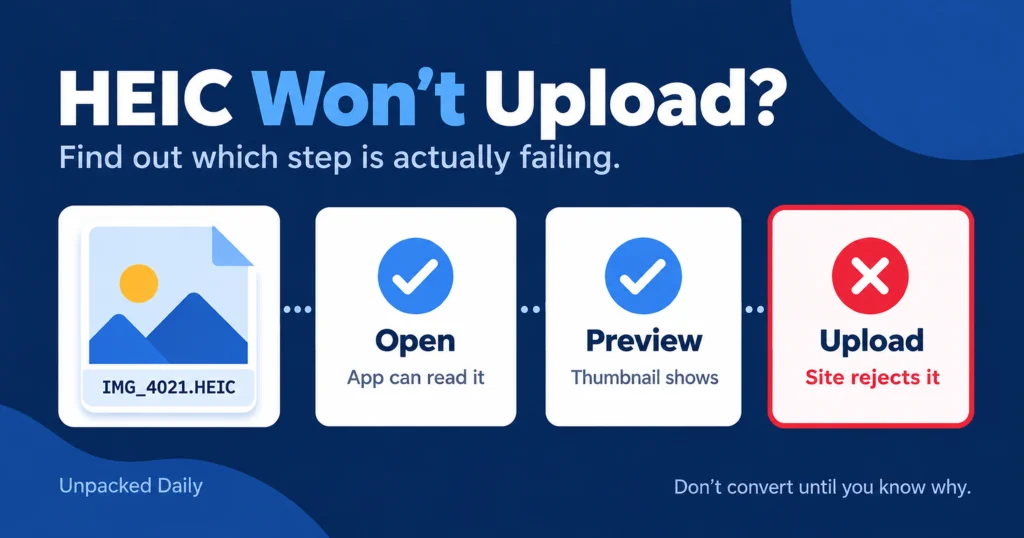
Opening a photo, previewing it, and uploading it to a website are three different things. The right fix depends on which one is failing.
Why your iPhone saves HEIC in the first place
Apple made the switch in 2017. iOS 11 and macOS High Sierra introduced support for HEIF photos and HEVC video , and iPhones began using the newer formats instead of relying only on JPEG.
The files you see on your phone usually end in .heic. HEIF is the image format, HEIC is the file extension commonly used for those images, and HEVC (H.265) is the compression technology commonly used to store the image data. These are related terms, but they don’t all mean the same thing.
Smaller photos, less storage used
HEIC can produce files that are about half the size of a comparable JPEG while keeping a similar visual quality. The actual saving depends on the photo and the encoder.
The catch is licensing and complexity. HEVC-based compression comes with licensing costs, which is one reason browser support has been slower to develop. As Can I Use’s HEIF compatibility data shows, support remains limited in many browsers.
JPEG, which dates to the early 1990s, has no such compatibility problem. It works almost everywhere, which is why websites still commonly ask for it.
“Won’t open” can mean three different things
A device can fail at any one of these and be fine at the others. Opening means a local app can read the file. Previewing means thumbnails and quick-look views work. Uploading means a website or app accepts the file and then processes or displays it.
A Windows PC may need an extension before it can open a HEIC photo. A browser might let you select the file in an upload dialog, only for the website to reject it. The failure points differ, so the fixes do too.
Open
Can the app on your device read the photo?
Preview
Can the device or browser show the image properly?
Upload
Will the website accept and process the file?
HEIC compatibility at a glance
| Device or software | Open locally | Display in a webpage | Upload to a website |
|---|---|---|---|
| Apple devices iPhone, iPad and Mac | Supported On supported Apple software | Supported Safari 17 and later | Varies Depends on the website |
| Android Version 10 and later | Varies Depends on the phone and app | Limited Browser support varies | Varies Depends on the website |
| Windows Windows 10 and 11 | May need extensions HEIF and sometimes HEVC | Limited Depends on browser support | Varies Windows support doesn’t guarantee upload support |
| Safari Version 17 and later | Supported On compatible Apple devices | Supported Can display HEIC images | Varies Depends on the website |
| Other major browsers Chrome, Edge and Firefox | Depends on OS The browser isn’t the local image viewer | Not natively supported In current stable desktop versions checked | Varies The website decides what it accepts |
Treat the Android and Windows rows as general guidance, not a guarantee. Operating-system versions, installed extensions, manufacturers and individual apps all matter. Browser support can also change with updates.
On Windows, the free HEIF Image Extensions from Microsoft may be enough in some setups. Others also need the HEVC Video Extensions. Microsoft’s troubleshooting guide explains the extension issue.
The web is the harder case. According to WebKit’s Safari 17 release notes , Safari added HEIC support in 2023. Other major browsers still lack native HEIC display support in current stable versions checked. A website can accept your photo and still fail to show it to visitors unless it converts the file on its server.
When converting is the right call
Convert when the destination really can’t take HEIC and you can’t change that. Typical cases include a government or job-application portal with a fixed list of allowed file types, a print kiosk or photo lab, an older editing program, or a recipient on a device that can’t open it. In those situations, HEIC’s advantages are irrelevant, because nobody downstream can use them.
Make a JPEG copy for the upload. Keep the original HEIC file.
Think before uploading sensitive photos
Watch how you convert, though. People usually hit this wall on government portals, tax sites or HR forms, so the photo being rejected is often a passport, driver’s licence or signed document. Avoid uploading sensitive IDs to random, ad-heavy “free HEIC to JPG” websites when your phone or computer can convert the file offline in seconds.
If you use an online service, check how it handles uploaded files. The fact that a converter works in your browser doesn’t automatically tell you whether the site sends files to a server or how long it keeps them. Our guide to web tracking and privacy explains why it’s worth paying attention to what happens when you use online services.
JPEG is also the safe default when you don’t know the recipient’s setup. Apple notes that when you share through AirDrop, Messages or email and the receiving device doesn’t support the newer formats, the media might be shared in a more compatible format such as JPEG. A share from your iPhone may already be a converted copy. Apple explains how this works in its guide to HEIF and HEVC media.
HEIC vs JPG: What You Lose When You Convert
The honest answer is “it depends on what you care about,” and most explainers overstate it in both directions.
Image quality
HEIC to JPEG is a re-encode, so you introduce another round of lossy compression. At a high quality setting, most people won’t see a difference in a normal photo.
How much damage is done depends on the converter, its quality slider and the image. Fine textures, smooth gradients like skies, and heavily edited shots can show it first.
It’s wrong to say every conversion visibly degrades a photo, and equally wrong to say it never matters.
Colour depth
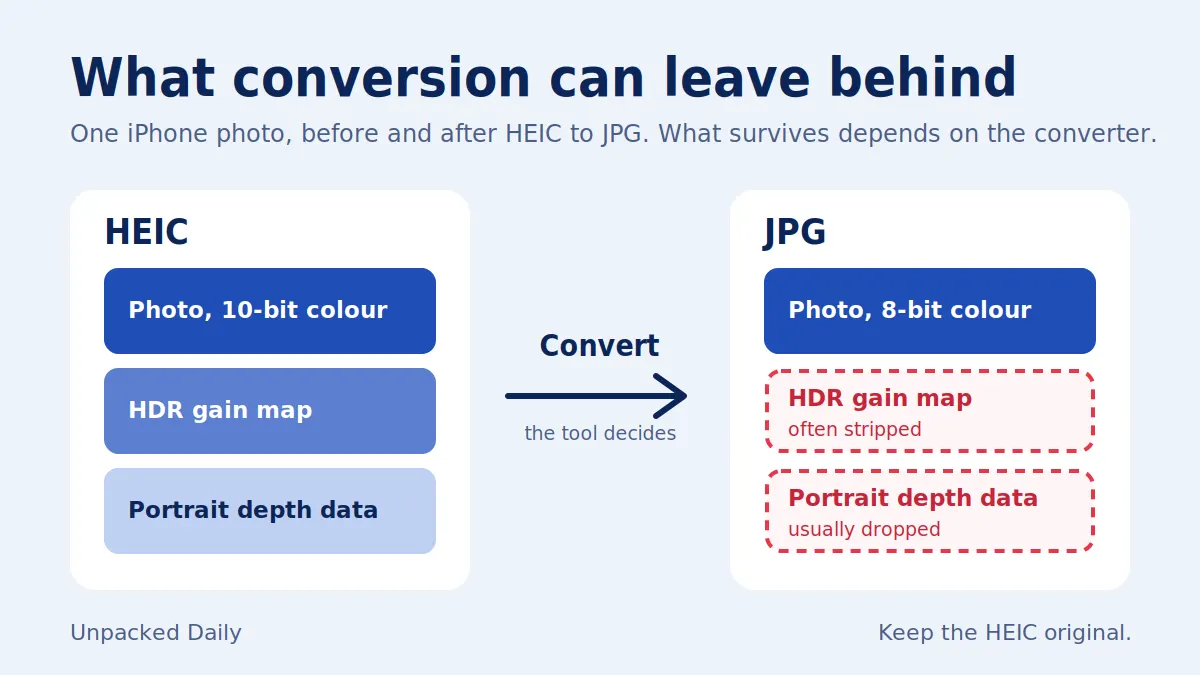
HEIF can preserve more image information than a standard 8-bit JPEG workflow, particularly when HDR is involved. But it would be misleading to say every iPhone HEIC photo is a 10-bit image.
What matters is how the photo was captured and what the converter keeps. Converting to a conventional JPEG can reduce the colour and brightness information available in the exported image.
HDR information
Some iPhone photos include an HDR gain map that lets compatible screens show brighter highlights. Gain maps aren’t exclusive to HEIC; JPEG can carry them too.
What happens during conversion depends on the tool. Some conversions preserve HDR information, while others remove the gain map or tone-map the photo down to standard range.
If you care about how a photo looks on an HDR display, converting it is not always a neutral step.
Extra data
Some Portrait Mode photos contain depth information that lets compatible software adjust the background blur after the photo is taken.
A normal HEIC-to-JPG conversion often strips that additional data, leaving you with the finished image but not the information needed to adjust the blur later. JPEG can carry depth data too, so the result depends on what the converter preserves.
Live Photos
A Live Photo combines a still image with a short video clip. Converting just the still image to JPG won’t preserve its motion and sound. You’ll get an ordinary photograph.
If you want to keep the moving part, save the Live Photo separately as a video. A JPG copy isn’t a replacement for the full Live Photo.
File size
At comparable visual quality, the JPEG is often bigger. But by how much depends on the quality setting and the image. A converter set to produce a very small JPEG may give you a smaller file by sacrificing more quality.
One claim to drop from this debate
HEIF as a format supports transparency and image sequences, and some comparison pages cite that as a reason to avoid conversion. iPhone camera photos don’t normally rely on those features, so for everyday photos they’re mostly theoretical.
The more practical things to watch are image quality, HDR data, depth information and Live Photo motion. None of these losses is guaranteed to be visible in an ordinary photo on a normal screen, but the original file can preserve options that a converted copy no longer has.
For a closer look at what compression removes from images, read our guide to why uploaded photos can look worse online .
Fixes to try (and how to convert without sketchy websites)
If you just need a JPEG now, use the built-in tools instead of a web converter. Start with the fix that matches your problem.
Convert a photo on your iPhone or iPad
On supported versions of iOS and iPadOS, save the photo to the Files app first. In Photos, tap Share, then Save to Files. Open Files, touch and hold the image, and choose Quick Actions → Convert Image.
Choose JPEG and, if a size option appears, select Original to keep the full dimensions. Files creates a converted copy, so you can keep the HEIC original.
Convert a photo on your Mac
In Finder, right-click the image and choose Quick Actions → Convert Image, then choose JPEG and the size you need.
You can also open the image in Preview, choose File → Export, select JPEG and save the new copy. Apple’s conversion guide explains the export method.
Stop new photos from being saved as HEIC
If the problem keeps coming up, change the source. Go to Settings → Camera → Formats and pick Most Compatible.
New photos will be saved as JPEG while your existing library stays as it is. Videos will also use more compatible formats where supported. This uses more storage, but it can eliminate some compatibility problems.
That’s a fair trade if you share constantly and rarely edit, and a poor one if your phone is already short on space.
Convert automatically when transferring to a PC
If your trouble is mainly moving photos to a Windows PC over a cable, open Settings → Apps → Photos and find Transfer to Mac or PC. On older iOS versions, this setting may appear directly under Settings → Photos.
Choose Automatic. When photos are transferred to a compatible computer, the iPhone can convert them to a more compatible format such as JPEG. This setting is for transfers; it doesn’t change the format of photos already stored in your library.
Keep the original
Whenever you do convert, keep the HEIC originals. The JPEG is a copy made for one purpose. If a site changes its rules next year, or you decide you want the original HDR or depth information, the original is the version to return to.
The practical rule
Convert the copy you need to send, not the photos you own.
If a website rejects HEIC or a recipient can’t open it, a quick on-device JPEG copy is the right fix and costs you very little in a normal upload.
If the problem is your Windows PC or an app on your own phone, an extension or a setting is often cleaner than a pile of converted files.
And if you edit on HDR screens or use Portrait Mode adjustments, keep the original, because what conversion removes is exactly the extra information the format was built to carry.