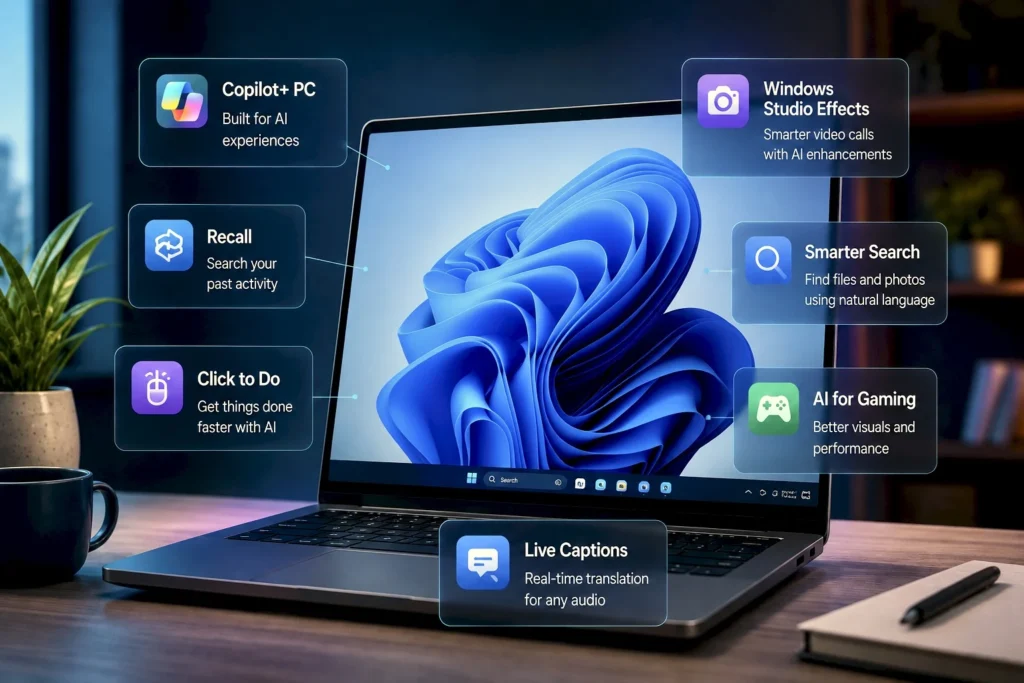
Windows 11 is adding AI across the system, including Copilot, AI-powered Search, Recall, Click to Do, Paint’s AI tools, and Photos’ AI features, making everyday tasks faster and more automated.
Windows 11 is adding AI to more parts of the PC, from Search and Recall to image editing, video calls and gaming. This article explains what these features actually do, how they work, and why some of them need a Copilot+ PC.
If you have been following Windows 11 updates recently, you have probably noticed that AI is showing up everywhere. But it is not just Microsoft Copilot anymore. Microsoft is putting AI directly into different parts of Windows, so it can help with things you already do on your PC.
Some of these features can understand what is on your screen. Others can search through your files using normal language, improve your video calls, translate speech, edit images or even improve graphics in supported games.
The important part is that not every Windows 11 PC gets all of these features. Many of the newer AI features are built around Copilot+ PCs and their dedicated NPU.
What is a Copilot+ PC
Before getting into the features, it is worth understanding the hardware behind them.
A Copilot+ PC is a Windows PC designed to handle AI tasks locally. The main part that makes this possible is the NPU, or Neural Processing Unit.
You can think of the NPU as a processor made specifically for AI workloads. The CPU handles normal computer tasks, while the GPU is mainly used for graphics. The NPU takes care of certain AI jobs more efficiently.
Microsoft requires Copilot+ PCs to have an NPU capable of more than 40 TOPS, which means more than 40 trillion operations per second.
This does not mean every AI feature needs an NPU. But several of Microsoft’s newer Windows features are designed around it.
Not every AI feature works on every Windows 11 PC. Support can depend on the device, Windows version, region and language. Features such as Recall, Click to Do and some other AI tools are mainly available on supported Copilot+ PCs.
Recall can help you find things you have seen
Recall is one of the most talked about Windows AI features.
The idea is simple. Recall takes snapshots of your activity on the PC and lets you search through them later using normal language.
For example, you might remember looking at a website about a particular car a few days ago. You do not remember the website name or when you opened it. With Recall, you can describe what you remember and use that to find the earlier activity.
It is basically like having a searchable history of what you have seen on your computer.
Recall also became one of Microsoft’s most controversial AI features because of privacy concerns around those snapshots. Microsoft changed the feature before wider availability, making it opt in and adding more controls around how it works.
The useful part of Recall is not that it is AI. It is that it can make your own PC activity easier to search.
Click to Do can understand what is on your screen
Click to Do takes the idea a little further.
Instead of opening an AI app and explaining what you are looking at, Windows can recognise content on your screen and offer actions based on it.
If you are looking at text, for example, it can offer actions such as copying, summarising or rewriting it. Depending on what is on the screen, it can also suggest other actions.
This sounds like a small feature, but it shows where Microsoft is taking Windows.
The operating system is starting to understand the content you are already working with instead of simply waiting for you to type a command.
It can save a few steps when you are working with text, images or information on your screen.
Windows Search is getting better at understanding what you mean
Windows Search has always been useful when you know exactly what you are looking for.
The problem starts when you remember what something looks like or what it contains, but not its file name. AI can help with that.
On supported Copilot+ PCs, Windows can understand descriptions of what you are looking for instead of relying only on exact file names.
So instead of remembering the name of a photo, you could describe the image you are trying to find. This is the kind of AI feature that can become useful without feeling like an AI feature at all. You simply search normally and Windows does more of the work in the background.
AI is also improving video calls
Windows Studio Effects uses AI to improve the camera and microphone during video calls.
Depending on the device, it can provide features such as automatic framing, background effects, eye contact and voice improvements.
Automatic framing can keep you centred in the camera view. Background effects can blur or change what is behind you. Voice related features can reduce unwanted background noise.
The NPU can handle these tasks while you are on a call, without putting the same load on the CPU.
This is a good example of where local AI makes sense. You are not asking an AI chatbot a question. The AI is simply working quietly in the background to improve something you are already doing.
Live Captions can translate speech
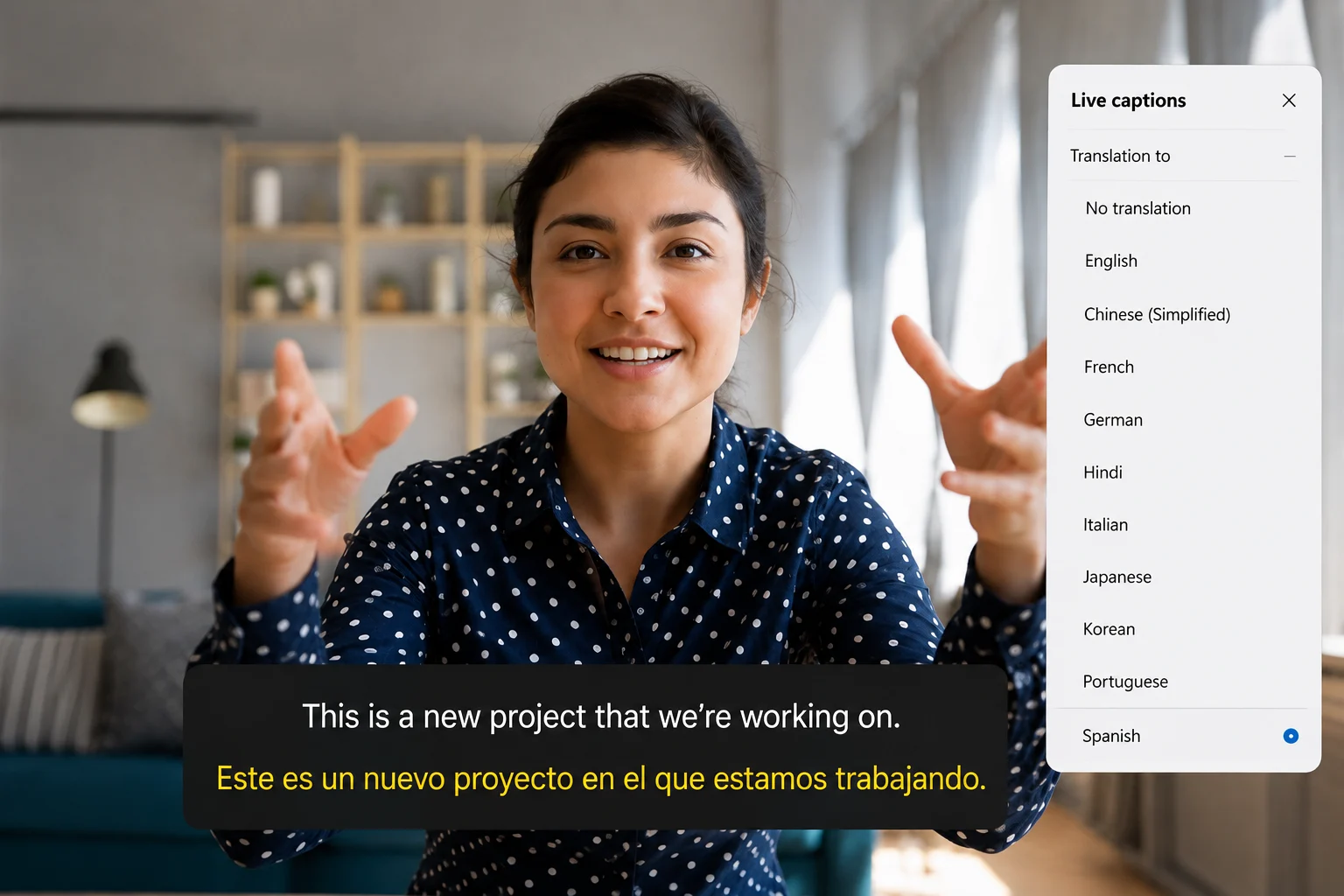
Windows 11 also uses AI for Live Captions.
The basic feature converts spoken audio into text on your screen. On supported Copilot+ PCs, Microsoft has also added real time translation for supported languages.
This can be useful when watching a video, attending a meeting or listening to someone speak in another language.
The interesting part is that the feature is built into Windows. You do not necessarily need to find another website or install another app just to get captions.
Paint and Photos are getting AI tools
Microsoft has also brought AI into some of its older Windows apps.
Paint has gained AI based tools for creating and editing images. Photos has also received AI features for editing and improving images.
This is probably the easiest use of AI to understand because the result is visible. You give the app something to work with and AI helps create or change it. But it is worth separating these features from things like Search and Recall.
Paint is using generative AI to create or change content. Search and Recall are using AI to understand information and make Windows easier to use. Microsoft is now using both types of AI inside Windows.
AI can also improve gaming
AI is not limited to productivity features. Windows 11 can also use AI for gaming through Automatic Super Resolution on supported hardware and games.
The basic idea is similar to other AI upscaling technologies. A game can render at a lower resolution, and AI helps produce a sharper image at a higher output resolution.
This can reduce the amount of work the GPU needs to do while still keeping the image looking reasonably sharp.
It is not something that will automatically improve every game. Support depends on the game and hardware. Still, it shows that Microsoft sees the NPU as more than a tool for chatbots and office work.
Why Microsoft wants AI running on the PC
This is where the NPU becomes important.
A lot of AI services today work through the cloud. You send information to a server, the server processes it and sends the result back. That works well, but it needs an internet connection and sends the task away from your device.
Running some AI tasks locally can make them faster and reduce the need to send information to the cloud. It can also help with privacy for features where the processing can happen directly on the PC.
This does not mean every AI feature in Windows runs locally. Some features and services still depend on Microsoft’s cloud infrastructure. The point of the NPU is to give Windows another option for handling AI tasks directly on the device.
So, are these AI features actually useful
Some are more useful than others.
Recall could be genuinely helpful if you regularly lose track of where you saw something. Smarter Search can save time when you cannot remember a file name. Studio Effects can quietly improve video calls without you doing much.
Click to Do is also interesting because it could reduce the number of small steps involved in everyday tasks.
Other features, especially some of the generative AI tools, will depend more on how often you actually use them. That is the bigger change with Windows 11.
Microsoft is not simply adding one AI assistant and calling it done. It is slowly making AI a layer inside Windows itself.
Search can understand what you mean. Windows can understand what is on your screen. AI can process your calls, images and captions, while supported hardware can handle some of that work locally.
You do not have to use all of these features. In fact, many people probably will not. But as more Windows PCs get NPUs and more Windows features start using them, AI is likely to become less of a separate tool and more of a normal part of using a PC.