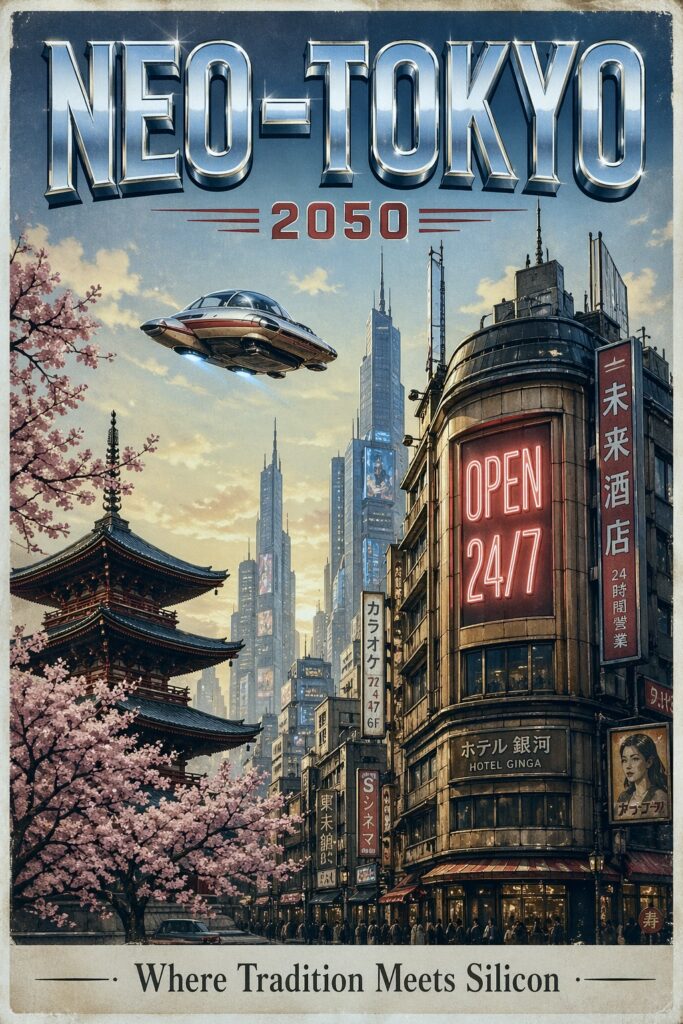
ChatGPT Images 2.0 is officially out. Have you ever spent twenty minutes trying to get an AI image generator to just spell a single word correctly? It is a special kind of modern torture. You ask for a coffee shop sign that says “Open,” and it gives you back “Oppen” or some weird alien symbols that look like they belong in a sci-fi movie.
Or maybe you finally got a character you liked, a cool droid cat or a specific person for a story, but when you tried to put them in a different scene, they suddenly looked like a completely different person. It’s frustrating because these tools are supposed to save us time, not give us a new hobby in prompt engineering.
Well, OpenAI just released ChatGPT Images 2.0, and it feels like they finally sat down and listened to those specific, nagging complaints. If you’ve been using the previous versions, you probably noticed they were okay at making pretty pictures but really struggled with the “smart” stuff like reading, following specific layouts, or keeping things consistent.
This new version, launched in April 2026, is less about being a flashy digital artist and more about being a reliable partner for actual work.
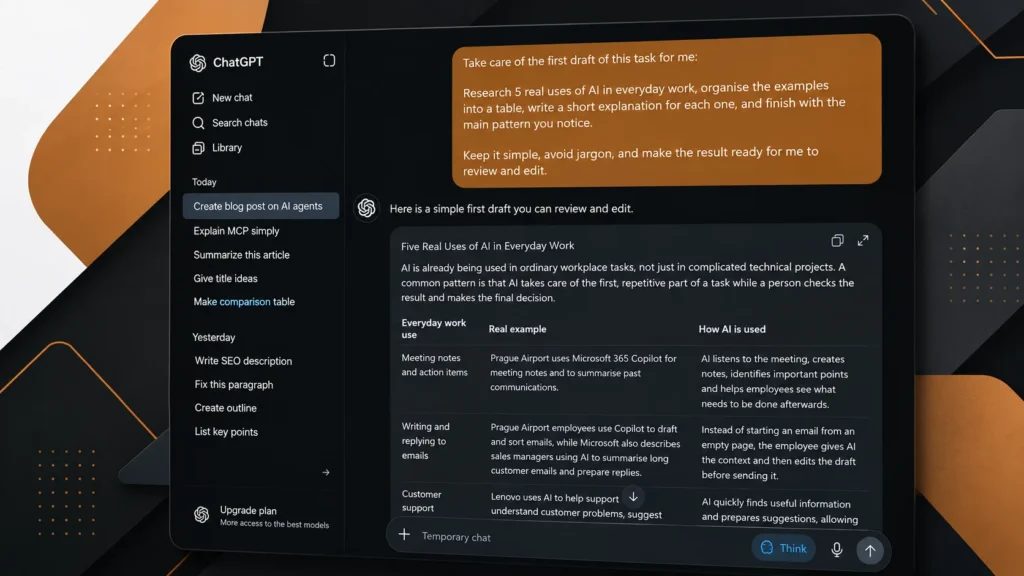
At its simplest, ChatGPT Images 2.0 is just the newest brain behind the “make me an image” button in your chat. You don’t have to go to a special website or use a different app like Sora, which OpenAI is actually winding down now to focus on this. It lives right inside the same ChatGPT window where you write your emails or ask for recipes. The big change is that it isn’t just “painting” anymore; it is actually reasoning about what you’re asking for before it starts drawing. It’s like the difference between an artist who starts sketching before you finish your sentence and one who stops, asks a few questions, and then gets to work.
ChatGPT Images 2.0 : What Actually Changed
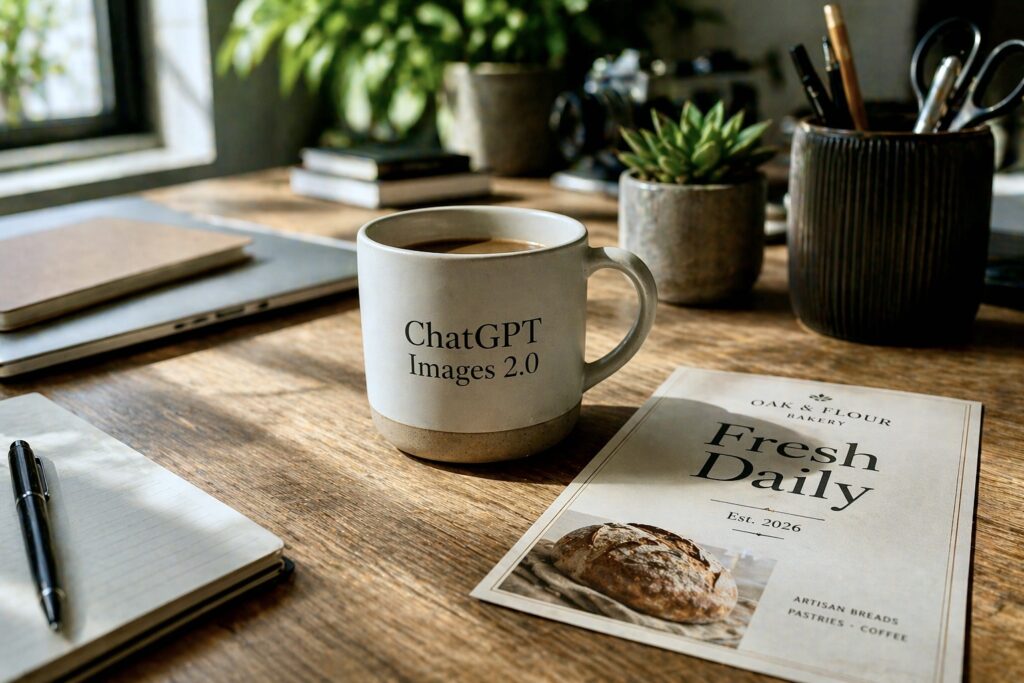
What makes this model different from the older ones isn’t just that the pictures look “better.” We’ve had pretty AI art for a while now. The real shift is in three specific areas: text, consistency, and a new feature called Thinking mode. For the first time, an image model can actually handle text with about 99% accuracy. This isn’t just for English, either. It can handle Chinese, Japanese, Arabic, and Hebrew without breaking a sweat. If you tell it to put a specific sentence on a curved coffee mug, it actually puts that sentence there, spelled correctly, in a font that doesn’t look like a glitch.
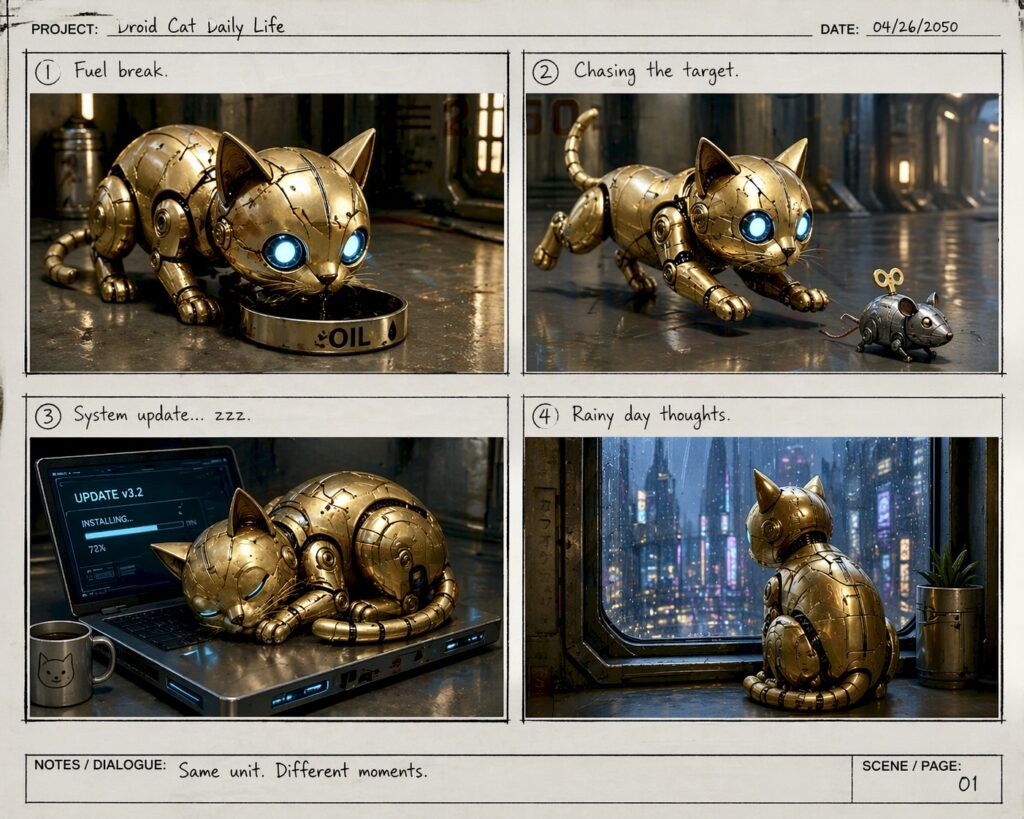
Then there’s the consistency. Usually, if you want to make a comic book or a storyboard, you’re out of luck because the AI can’t remember what your character looked like ten seconds ago. This version can generate up to eight images at once from a single prompt, keeping the same characters, objects, and art style across all of them. It’s a massive jump for anyone trying to tell a story rather than just making one-off cool backgrounds.
From Cool Images to Actually Useful Work
If you’re wondering how this actually works without getting into a computer science lecture, think of it like this: older models were “diffusion” models. They started with a cloud of digital noise and tried to refine it into a shape. This new model is “autoregressive.” It builds the image piece by piece, much like how ChatGPT builds a sentence word by word. Because it’s built on the same logic as the text model, it understands context much better. It doesn’t just see the word “Paris” as a shape; it understands what Paris is, what the signs there look like, and how to spell the words that should be on those signs.
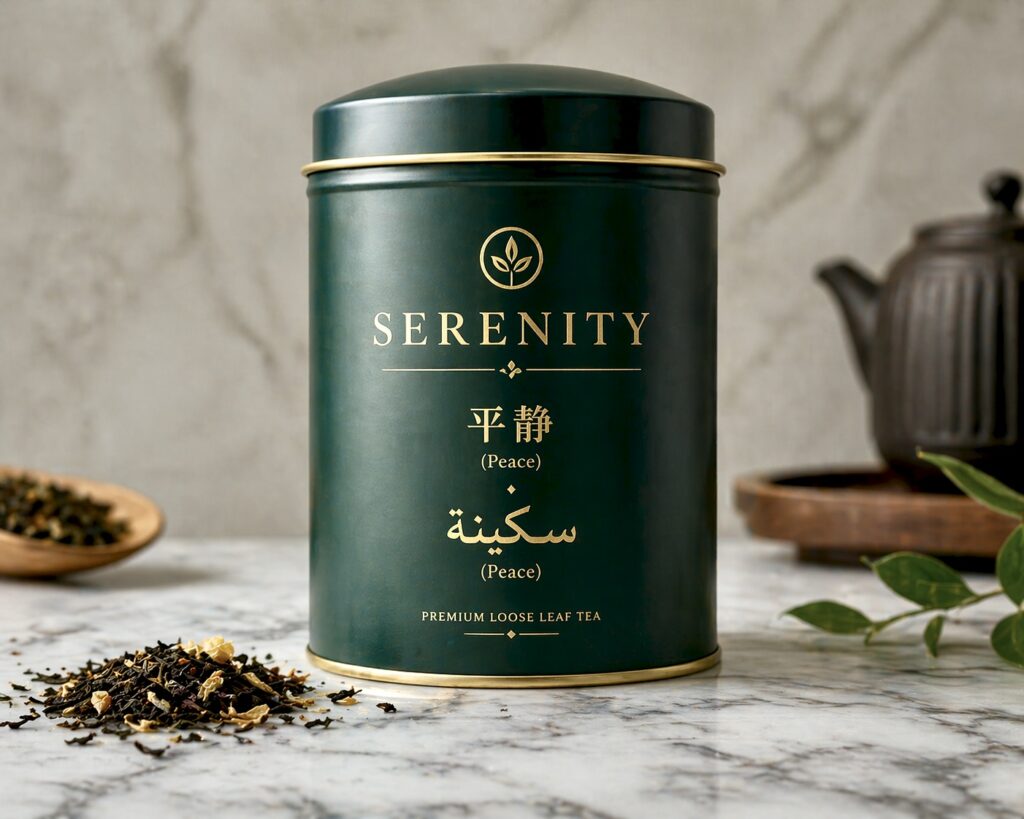
This matters because it moves AI images out of the “toy” phase and into the “tool” phase. If you’re a small business owner, you can now actually design a product label or a social media ad without needing to jump into Photoshop to fix a typo. You can generate a mockup of a website or a mobile app that looks like a real piece of software, not a blurry dream. For creators, especially those making manga or storyboards, being able to say “show this character in eight different poses” and actually getting that character back every time is a huge deal. It’s about predictable results.
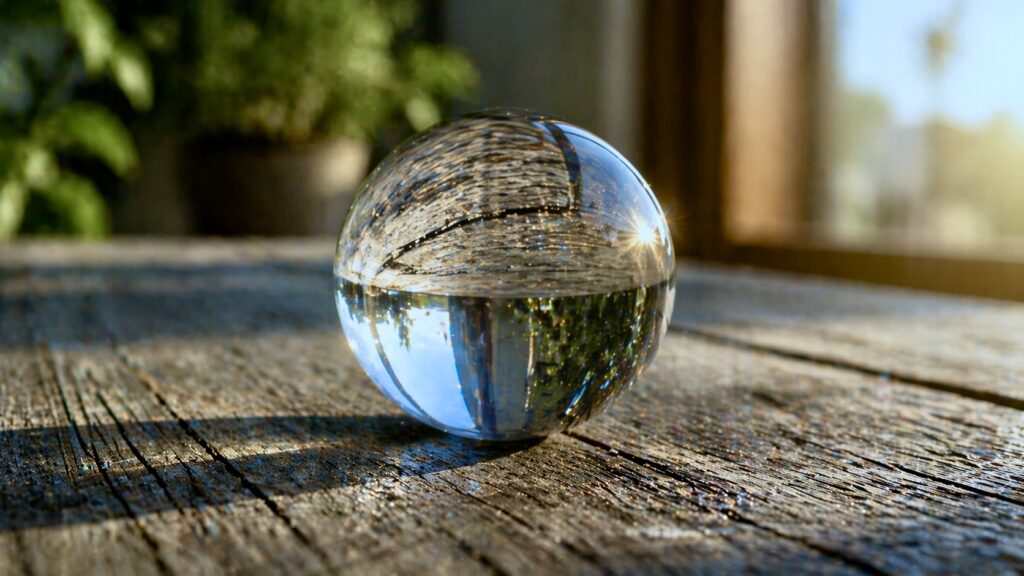
Even the way the images look has changed. There was always a specific “AI look” that overly smooth, plastic-like skin and perfect, cinematic lighting that felt a bit fake. This model pulls back on that. It captures the actual textures of a photograph, like skin pores, weathered surfaces, or the way light reflects off a glass sphere. It feels more grounded in reality and less like a digital filter. It even understands things like optical physics better, showing how light bends through a glass object or how a shadow should actually fall on a wooden table.
Limitations, Mistakes & How to Use It Smartly
But let’s be honest: it still isn’t perfect. Even though it is much smarter, it still has some weird blind spots. For example, it still struggles with complex maps. You might ask for a map of Africa and find that it has moved a capital city to a different country or invented a brand-new nation in the middle of the desert. It also doesn’t support transparent backgrounds yet, which is a bit of a bummer for designers who want to drop an object straight into a layout.
There’s also the cost factor if you’re using it through an API for a business. While basic images are cheap, if you want the high-resolution, high-quality stuff, the price can jump up. And while the “Thinking” mode is great, it takes a few extra seconds to run. If you just need a quick icon, the extra wait might feel unnecessary.
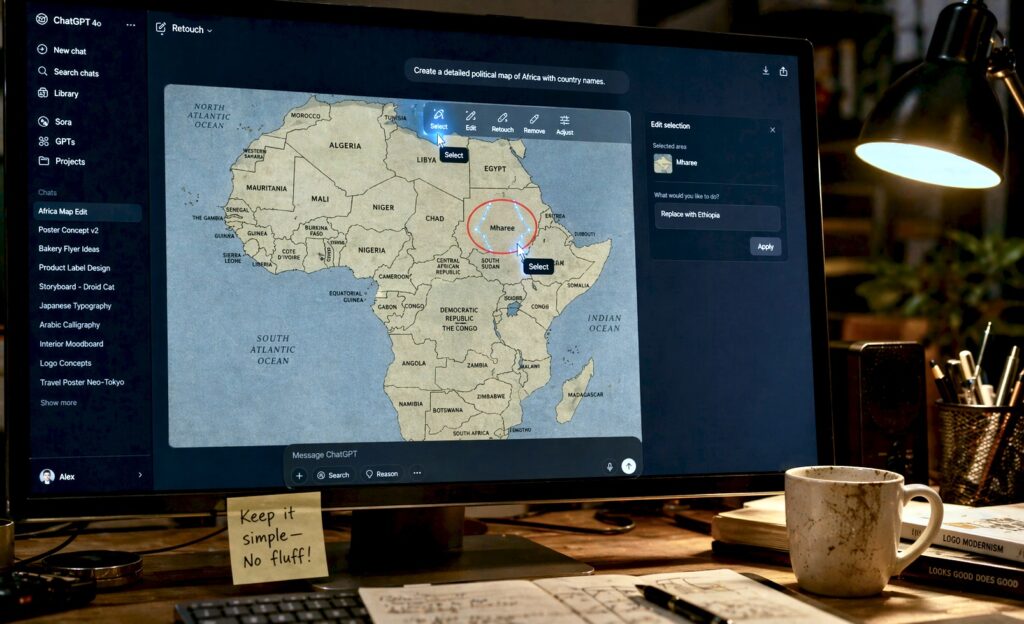
A common mistake people are going to make with this new model is over-prompting. We’ve all been trained to write paragraphs of “hyper-realistic, 8k, masterpiece” just to get a decent result. With 2.0, you don’t really need to do that. In fact, if you give it too much fluff, you might distract it from the actual reasoning it’s trying to do. Another mistake is forgetting that the “Edit” tool exists. You don’t have to keep re-rolling the whole image if you don’t like one small part. You can just select the area you want to change and tell ChatGPT to fix it in plain English.
If you want to get the most out of this, my best advice is to use the “Thinking” mode for anything that requires logic. If you’re making an infographic or a comic strip, don’t use the “Instant” mode. Let it take the extra few seconds to “think” so it can plan out the layout and the text. Also, be very specific about text. If you want a sign to say something in a specific language, just tell it. It’s surprisingly good at handling non-Latin scripts, so don’t be afraid to test its multilingual skills.
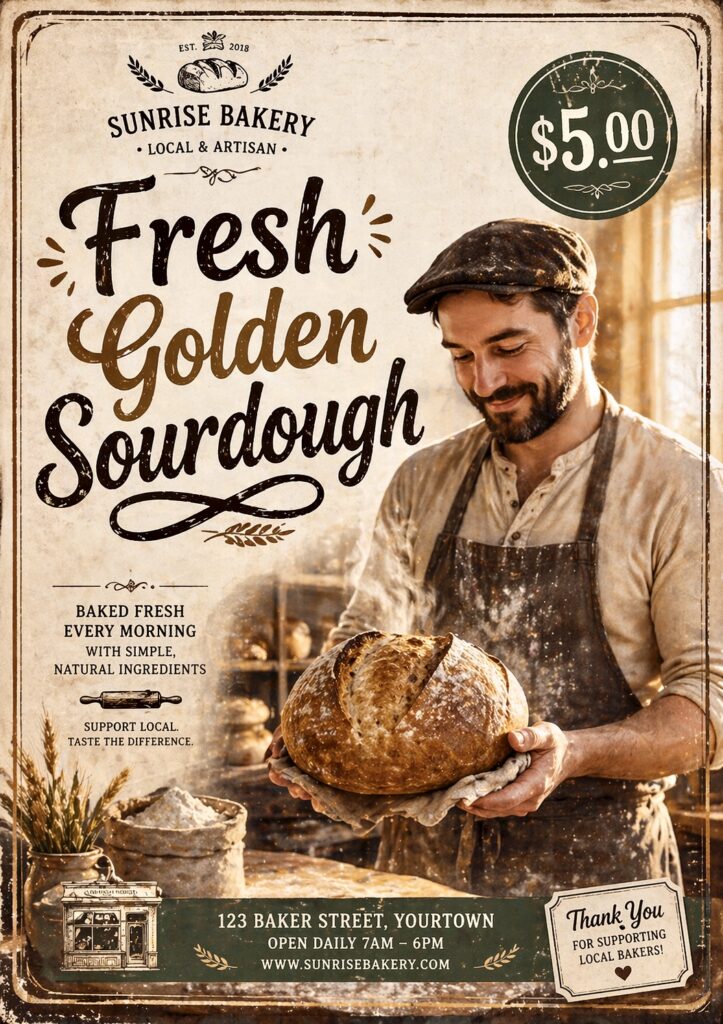
Let’s look at a real scenario. Imagine you’re a local bakery owner. You want to make a flyer for a new “Golden Sourdough” you’re selling. With the old models, you’d get a picture of bread, but the text on the flyer would be gibberish. With ChatGPT 2.0, you can ask for a vintage-style poster, specify that the headline says “Fresh Golden Sourdough,” put the price in the corner, and ask for a character maybe a friendly baker to be standing in the background.
You get a finished asset that you can actually print and use. If you want to see that same baker in five other posters for different products, you can do that too, and he’ll look like the same guy every time. Best of all, you actually own the rights to these images for your marketing and product designs.
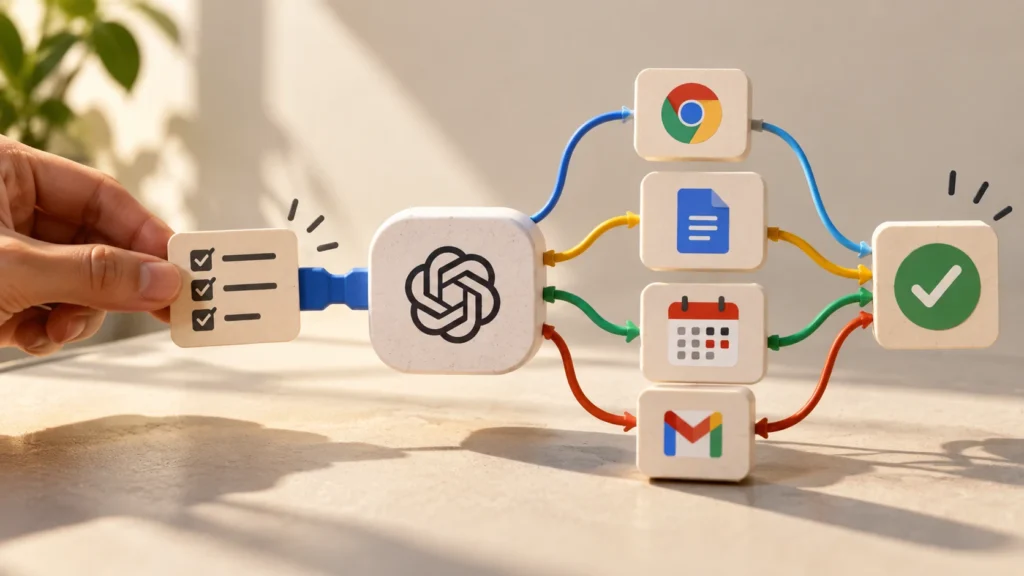
Looking at the bigger picture, this update tells us a lot about where AI is going. OpenAI is moving away from having ten different apps for ten different things. They want one workspace where you can talk, write, code, and design all in one flow. This is why they are putting all their energy into the image tools inside ChatGPT and moving away from standalone video projects like Sora for now.
This isn’t about some future where AI replaces every designer. It’s about the fact that the barrier to entry for making something professional-looking just got a lot lower. It’s moving away from “look at this cool thing the computer did” toward “look at this thing I made using the computer.” It makes the creative process feel less like a lottery and more like an actual conversation.
In the end, it’s just another tool in the box. It won’t make you a better artist or a better business owner on its own, but it will definitely stop you from pulling your hair out over a misspelled word on a digital coffee mug. It’s worth playing around with, even if just to see a piece of AI text that you can finally read without squinting.
FAQ’s
Q. Can I use these images for my business?
A. Yes. According to OpenAI’s terms, you retain full ownership of the images you generate, meaning you can use them for marketing, ads, or even printing on physical products like mugs or shirts.
Q. What is the difference between “Instant” and “Thinking” mode?
A. Instant mode is fast for simple visuals. Thinking mode allows the AI to “reason” first, which is much better for following complex instructions, rendering correct text, and keeping characters consistent across multiple images.
Q. Does this version fix the weird “AI look”?
A. Mostly, yes. The new model focuses on realistic textures, lighting, and “true-to-life” color science to avoid the overly smooth, plastic-like appearance common in earlier AI generators.