THE PC BUYING GUIDE
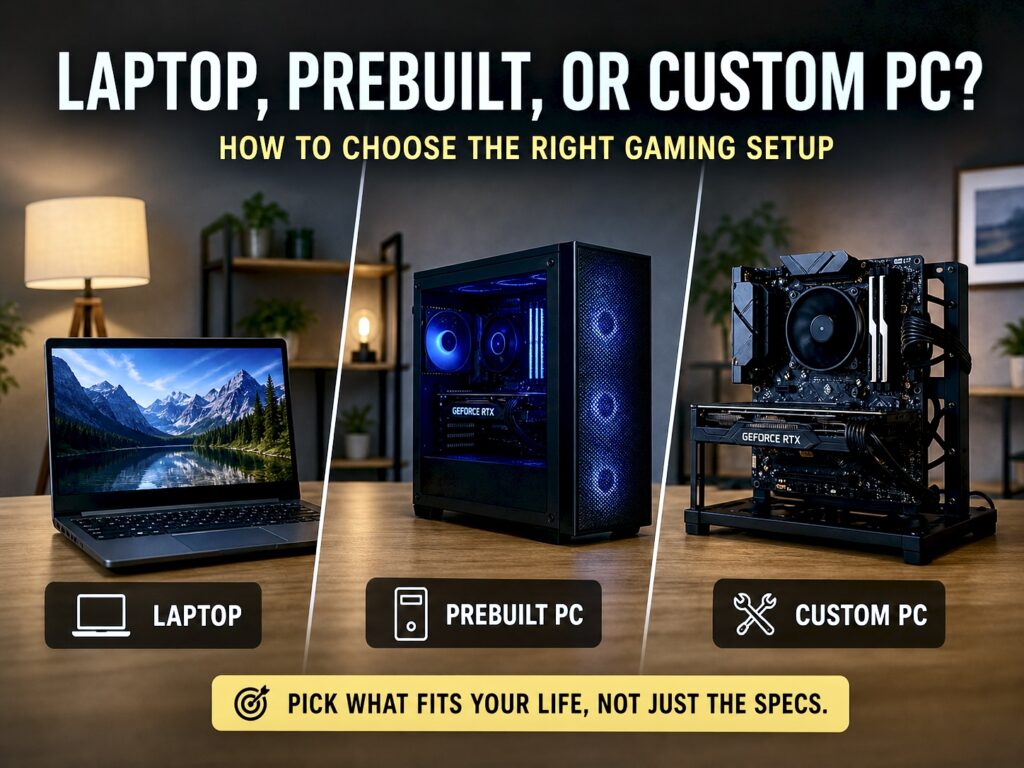
A laptop, a prebuilt desktop, and a custom PC can all play the same games. The difference is what you give up to get there: portability, control, time, or upgrade options.
Most gaming laptops live on one desk, plugged into one wall, next to one mouse. Their owners paid extra for portability and barely use it. That is the mistake behind a lot of PC buying decisions. People buy for the setup they imagine, not the one they actually use.
Before comparing graphics cards or processor names, ask one plain question: where will this machine spend most of its life? That answer gets you closer to the right purchase than a dozen spec sheets.
Laptop
Pay for portability. Accept tighter power and upgrade limits.
Prebuilt PC
Pay for convenience, testing, warranty, and support.
Custom PC
Pay with research and your own time. Choose every part.
The best setup is not the one with the biggest spec number. It is the one whose compromises you will actually notice the least.
01 / PORTABILITY
The laptop tax is real. So is the convenience.
A laptop GPU and a desktop GPU can share a name without sharing the same power budget. Take the RTX 4070 generation. NVIDIA lists the RTX 4070 Laptop GPU across a 35 to 115 watt range, while the desktop RTX 4070 has a 200 watt total graphics power rating. Those figures are not a direct FPS formula, but they show why the badge alone tells you too little.
SAME NAME, DIFFERENT POWER LIMITS
Example: RTX 4070 generation
Power limits are one clue, not a performance score. Cooling, clock speeds, the CPU, and the laptop’s power settings also matter. NVIDIA’s laptop GPU specifications and desktop RTX 4070 specifications list the separate ranges.
That is why you should look up the exact laptop model, not just the GPU name. A thin machine running a lower power limit can perform differently from a larger model with stronger cooling, even when both boxes advertise the same GPU. Read reviews that test the laptop under a sustained gaming load, not only short benchmark bursts.
Cooling is part of the design, but do not assume every laptop automatically throttles after a few minutes. Some handle long sessions well. Others become hot, loud, or reduce performance when the CPU and GPU compete for power and cooling. A review of the exact model is the useful evidence here.
There is also an upgrade cost. In most mainstream gaming laptops, the GPU is soldered to the motherboard rather than installed as a replaceable desktop card. RAM and storage may be upgradeable, but do not assume that without checking the model’s service details. ASUS explains the usual GPU limitation in its laptop GPU upgrade guide.
02 / CONVENIENCE
A prebuilt saves time. Check what the savings cost.
A prebuilt is not automatically a bad deal. Someone assembles it, checks that it boots, and gives you one company to contact if something goes wrong. That support has value, especially if you do not want to spend your weekend troubleshooting a new PC.
The mistake is treating the headline specs as the whole machine. A listing that says 16GB RAM, 1TB SSD, and RTX graphics still leaves out details that affect performance, noise, repairs, and future upgrades.
Check the RAM layout
Ask whether the system has one memory stick or two. The same capacity can behave differently depending on the memory configuration, and the effect varies by game and workload.
In TechSpot’s 2025 test across 13 games, a single DDR5 module averaged 12% lower frame rates at 1080p than its two-module setup. That test also changed total capacity, so the number is an example, not a universal penalty. See the test and its limits.
Find the exact power supply
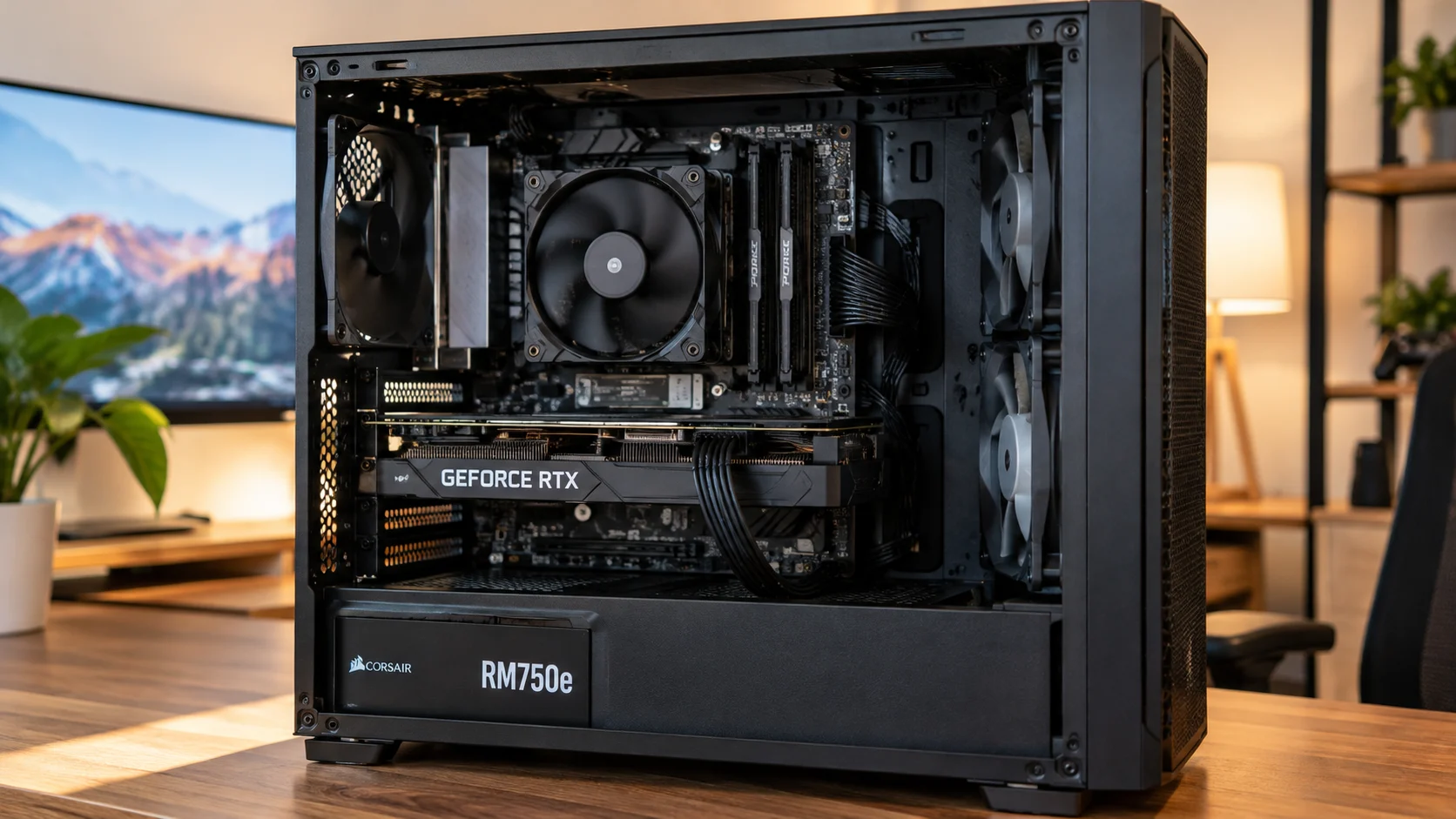
Do not stop at the wattage or an efficiency badge. Ask for the PSU’s full model number and check independent reviews. It needs to handle the current parts reliably and leave realistic room for the upgrade you might actually make.
Check standard parts
Some desktop makers use custom motherboard sizes, power connectors, or case wiring. That does not make the PC unusable, but replacing a failed part or moving everything to a new case can become harder. Check the exact model’s service manual before buying.
Look at cooling and warranty
Count the actual case fans, look for clear front air intake, and check the CPU cooler. Then read what the warranty covers, who handles collection and repair, and how long support lasts.
03 / CONTROL
A custom build gives you control. It also gives you the problem.
Building your own PC is not reserved for engineers. The parts are designed to fit in specific places, connectors are usually keyed, and compatibility tools can catch many obvious mistakes. But the job is more than plugging parts together. You still need to choose a balanced set of components, assemble them carefully, install the software, and work out what went wrong if the first boot fails.
Choose around your games, target resolution, and budget.
Confirm CPU, motherboard, RAM, case, and PSU compatibility.
Follow the manuals, take your time, and do not force parts.
Check temperatures, stability, drivers, and fan noise.
The upside is that you decide where the money goes. You can choose a reputable power supply, a case with sensible airflow, a motherboard with the ports you need, and a graphics card that fits the budget. If a desktop GPU becomes too slow later, you can often replace that one part instead of buying a new machine.
The downside appears when something does not work. A loose RAM stick, a missing power cable, an old BIOS, or an incompatible part can stop a new PC from booting. It might be a simple fix, or it might eat an evening of troubleshooting. If diagnosing problems sounds miserable rather than satisfying, count that time as part of the price.
Before ordering, use a compatibility checker such as PCPartPicker’s system builder, then check the motherboard and case manuals and read reviews of the parts themselves. A compatibility check does not guarantee that every physical fit, BIOS, cooling, or clearance issue is solved.
You choose the power supply, cooling, case, board, and upgrade path.
You own the compatibility checks, assembly, first boot, and diagnosis.
Compare complete costs, not just the tower. Include the monitor, keyboard, mouse, operating system if needed, Wi-Fi, and any other missing parts. A prebuilt can look more expensive until you realise it already includes pieces you would otherwise have to buy.
THE ACTUAL CHOICE
Pick the inconvenience you can live with.
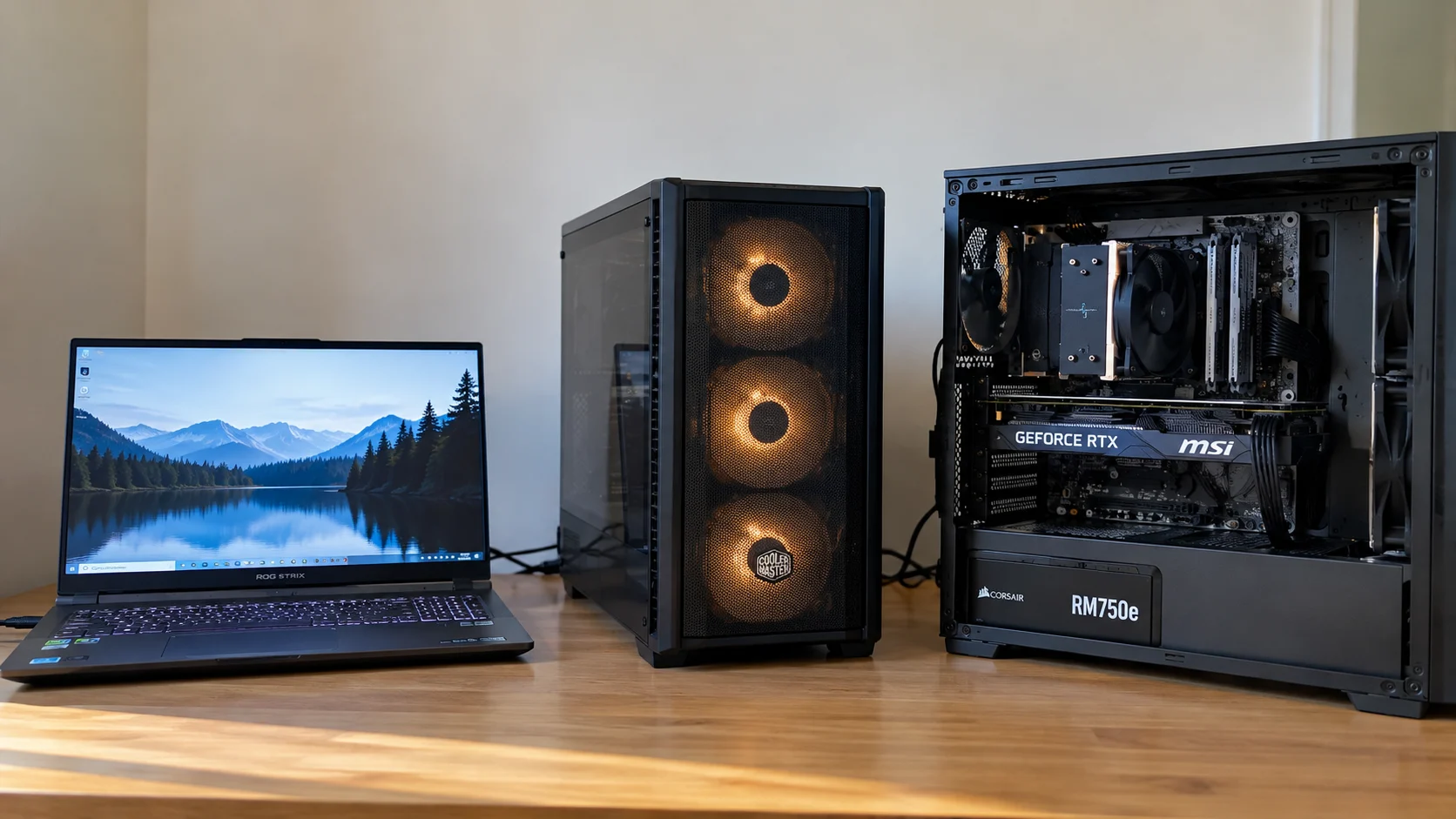
Every option solves one problem and creates another. Use this comparison to find the trade-off that matches your week, not an idealised version of it.
| What matters | Laptop | Prebuilt desktop | Custom desktop |
|---|---|---|---|
| Portability | Best | Low | Low |
| Setup effort | Low | Low | High |
| Choice of parts | Limited | Depends on builder | Highest |
| GPU upgrades | Usually not practical internally | Depends on case, PSU, and parts | Usually easiest |
| Support | One device maker | One system seller | Different part makers |
| Best fit | People who move | People who want convenience | People who want control |
These are general patterns, not guarantees. Check the exact laptop, desktop model, component list, and warranty before spending money.
MAKE THE CALL
Three sensible ways to buy.
Buy a laptop
Choose this when you really work, study, or game in different places. Check the exact model’s sustained benchmarks, GPU power, fan noise, battery needs, and upgrade options.
Buy a prebuilt
Choose this when you want a working desktop and a clear support route. Verify the RAM layout, power supply model, case airflow, standard parts, and warranty first.
Build a custom PC
Choose this when you enjoy the research, want to select every part, and can live with being your own first line of support when a problem appears.
A FOURTH OPTION
A normal laptop and a desktop or console
If you need portability for everyday life but only want serious gaming at home, splitting the jobs can make more sense than buying one expensive gaming laptop. Compare the full cost before deciding, including the screen and accessories you need for a desktop.
The bad purchase is rarely a laptop, a prebuilt, or a custom PC by itself. It is paying for portability you do not use, accepting mystery parts to save a little time, or building a machine because it sounds cheaper before counting the hours it will take. Buy for the routine you have. Let the fantasy stay in the product advert.
SOURCES AND FURTHER READING
Check the details before you buy
- NVIDIA, GeForce laptop GPU comparisonSpecifications for the RTX 4070 Laptop GPU power range.
- NVIDIA, GeForce RTX 4070 familyDesktop RTX 4070 total graphics power and system requirements.
- TechSpot, RTX 4090 Laptop versus desktop GPU testingA 20-game example of why matching GPU names do not mean matching performance.
- TechSpot, single stick versus dual-channel RAMGaming tests that show how memory configuration can affect results, with variation between games.
- ASUS ROG, can you upgrade a laptop GPU?Why internal GPU replacement is not normally possible in modern gaming laptops.
- Newegg Insider, upgrading a prebuilt desktop PCExamples of compatibility limits involving power supplies, cases, and proprietary connectors.
Hardware examples in this article explain general buying trade-offs. Performance depends on the exact model, firmware, cooling, power settings, components, games, and benchmark conditions. Check the current product documentation before ordering.