Uploading a file to AI isn’t just about sending a document. In a few seconds, the AI opens the file, reads its contents, understands the text, images, and tables, and prepares everything so it can answer your questions. Here’s what actually happens behind the scenes.
You upload a file… then what?
Whether it’s ChatGPT, Gemini, Claude, or another AI tool, the process starts almost instantly after you click Upload.
It may look like nothing is happening, but the AI is doing several things in the background before it replies.
Let’s go through them one by one.
Step 1: The AI identifies the file
The first job is to recognise what you’ve uploaded.
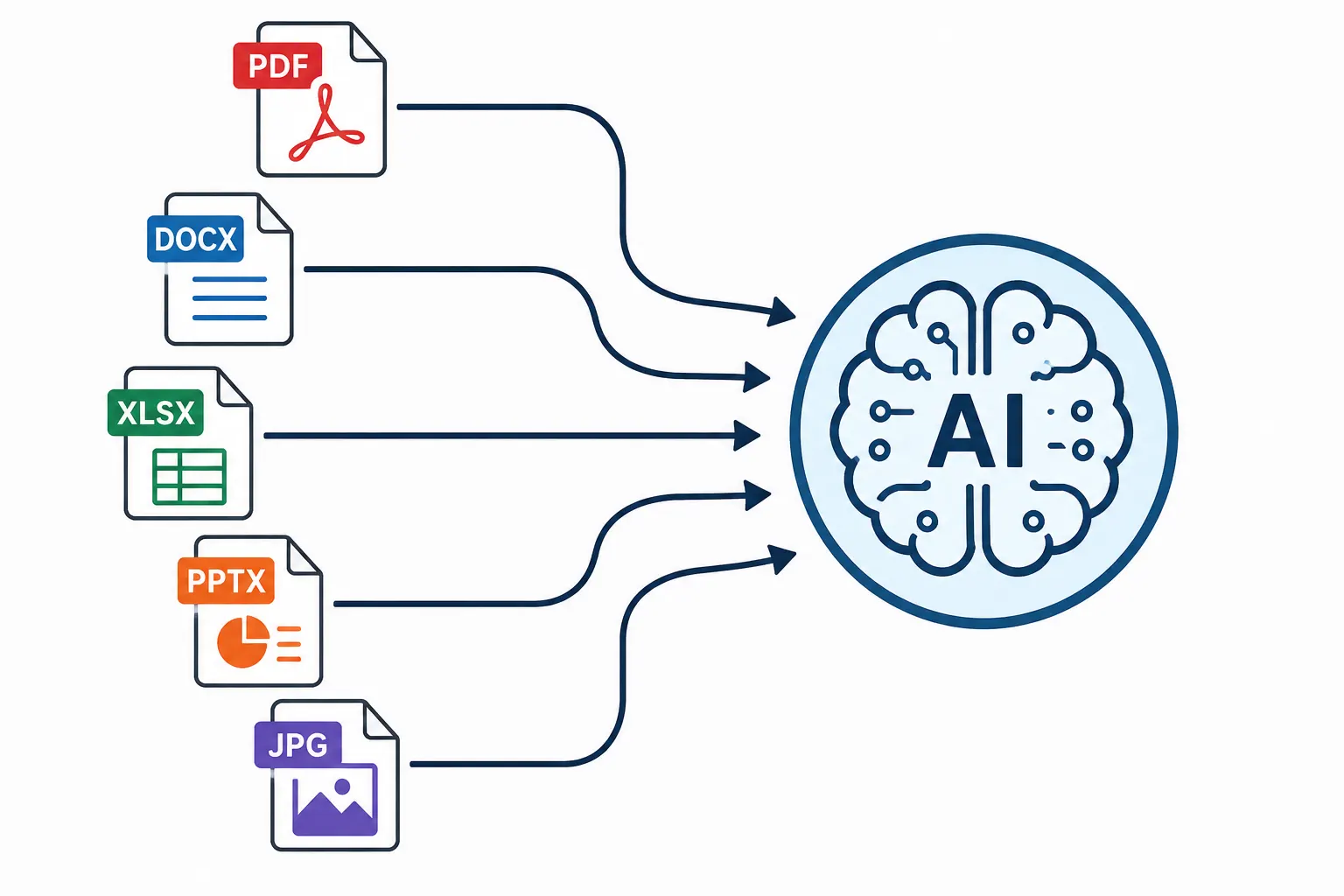
It could be:
- 📝 Word document
- 📊 Excel spreadsheet
- 📽️ PowerPoint presentation
- 🖼️ Image
Why does this matter?
Because every file stores information differently. A PDF isn’t read the same way as an Excel sheet.
Step 2: It opens and extracts the content
Now the AI starts reading the file.
If it’s a normal PDF or Word document, it extracts the text.
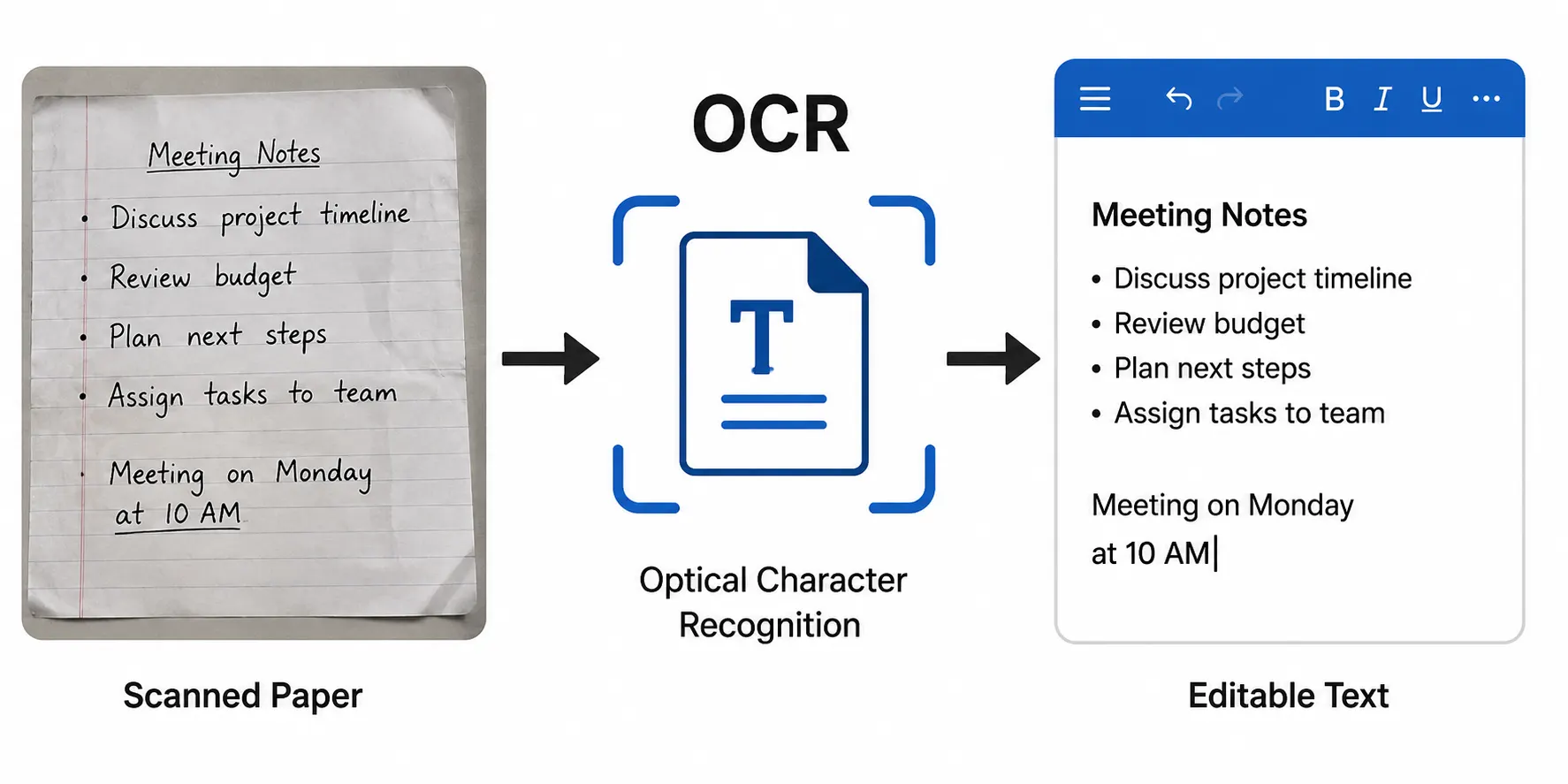
If it’s a scanned document (like a photo of paper), it first converts the image into readable text using OCR (Optical Character Recognition).
That’s why you can upload an old scanned bill and still ask questions about it.
Step 3: It looks beyond just the words
Modern AI doesn’t only read text.
It also tries to understand:
- Images
- Charts
- Tables
- Diagrams
- Screenshots
For example
if your PDF contains a sales graph, the AI can often explain whether sales went up or down instead of just reading the numbers.
Step 4: It organises the information
A 200-page PDF isn’t treated as one giant block of text.
The AI breaks it into smaller sections and understands how they’re connected.
Think of it like adding bookmarks inside a book.
This helps the AI quickly jump to the right part when you ask a question.
Step 5: Now it’s ready for your questions
Suppose you ask:
“Summarise Chapter 5.”
The AI doesn’t randomly guess.
It looks at the relevant part of the document and generates an answer based on that information.
That’s why it can usually answer in seconds, even for long files.
What if you upload an Excel sheet?
Spreadsheets are handled differently.
Instead of reading paragraphs, the AI looks at:
- Rows
- Columns
- Tables
- Numbers
- Formulas (where supported)
That’s why you can ask questions like:
- Which product had the highest sales?
- What’s the average revenue?
- Create a summary of this data.
What about images?
If you upload a photo instead of a document, the AI analyses what’s visible.
For example, it can recognise:
- Objects
- Text inside the image
- Graphs
- Receipts
- Error messages
- Handwritten notes (sometimes)
The quality of the image matters. A blurry photo can lead to incorrect answers.
Does AI keep your file forever?
Not necessarily.
Different AI services have different policies.
Some may temporarily store your upload, while others offer settings that prevent your chats from being used for training.
If you’re uploading confidential documents, always check the privacy settings of the AI service you’re using.
Rule of thumb: Don’t upload sensitive files unless you’re comfortable with how that platform handles your data.
Can AI make mistakes?
Yes.
AI can misunderstand:
- Blurry scans
- Poor handwriting
- Complex tables
- Technical drawings
- Low-quality images
So, while it’s great for saving time, you should still verify important information.
My Take
Uploading a file to AI may feel simple, but a lot happens in the background.
The AI identifies the file, extracts the content, understands text and visuals, organises the information, and only then starts answering your questions.
The next time you upload a PDF or spreadsheet, you’ll know why those few seconds are enough for AI to understand what you’ve shared.